
The first step is to retrieve the batch from the HMS system.

The system will prompt you to confirm whether the latest batch should be imported. Select Yes to proceed.
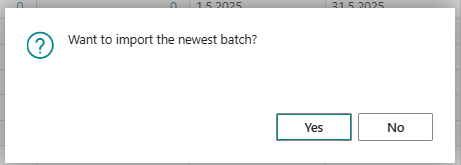
The system then retrieves the batch, and its details open in a new window. The batch is automatically assigned to the period that was selected, and that period is updated with the status "Batch imported".

In the batch window, you only need to enter a description (e.g., "Property Taxes 2025") and post the batch. You can also change the period assigned to the batch if needed. The posting date of the batch is determined by the selected period.
To post the batch, click Post Assessment.

Once the batch has been posted, a summary of the posting is displayed. This includes information such as whether new properties were added, the number of ownership changes, the number of new customers created, and the number of entries in the journal.
The next step is to post the journal. To do this, click the General Journal button in the Property Tax Period menu.
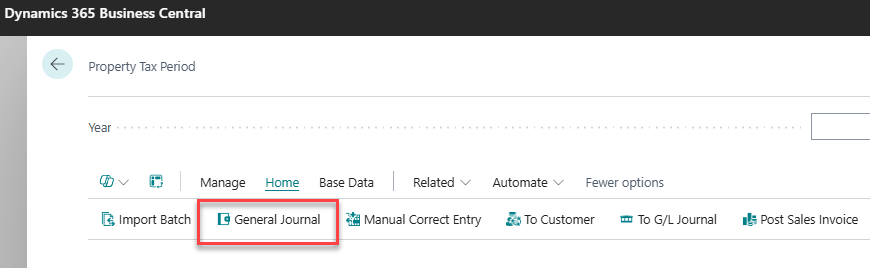
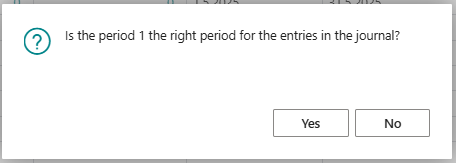
The system will ask you to confirm that the correct period is selected. This is a new feature designed to ensure that all actions are properly recorded under the appropriate period. Select Yes to continue.
The journal opens automatically once the batch has been posted. No changes should be made to the journal before it is posted.
Note: If the option to distribute the initial allocation across months was selected when the fiscal year was created, multiple entries will be generated in the journal on different dates. Therefore, it is necessary to click the Posting Date column to sort the entries by date before posting the journal. If this step is skipped, an error will occur when attempting to post.
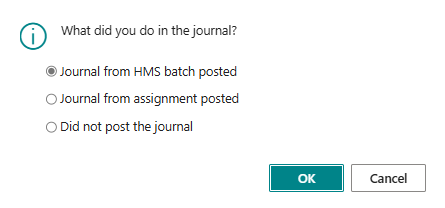
When the journal is closed after posting, the system will prompt you to specify what was done in the journal. This is part of a new feature that tracks which entries have been made during each period. In this case, select Journal from HMS batch posted and then click OK.
The status of the period changes to "Period posted."
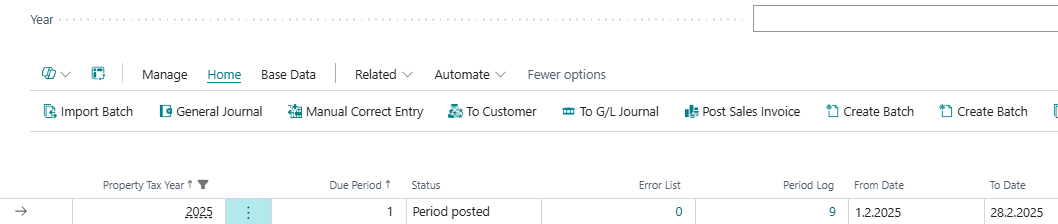
The next button in the sequence is "Manual Correct Entry"
This button should only be used if there were errors in the batch. You can determine whether this is necessary by checking the Error List column for the period — if the value is not zero, a manual adjustment may be required.
The use of this button will be covered in more detail later in these instructions.
For now, we assume that there are no errors in the batch.
Note:
If there is reason to believe that new assets have been added for transfer, or that municipal assets have been sold, this is the appropriate time to run the Mark Owned Properties process.
It is recommended to perform this step at this point in the initial allocation process.