
Setting Up a New Year and Creating Periods
When beginning a new year, the first step is to create the new year and define its periods. This is done by navigating to Municipality Systems > Wise Property Manager > Property Tax Period
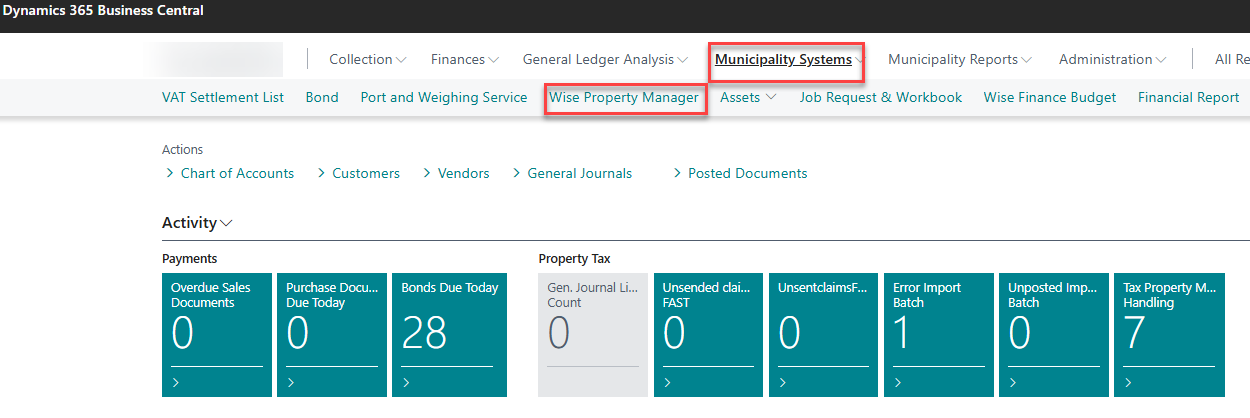
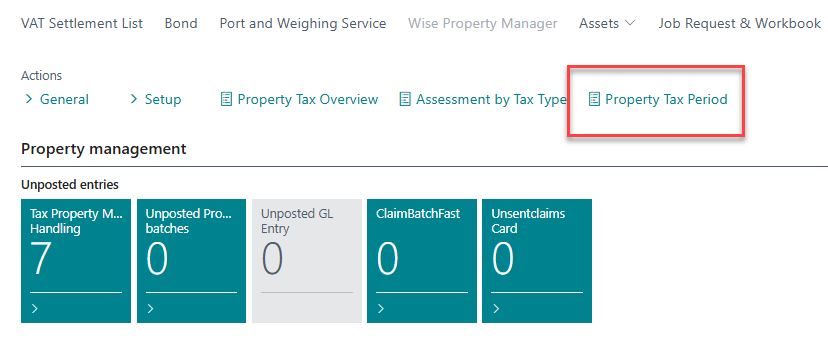
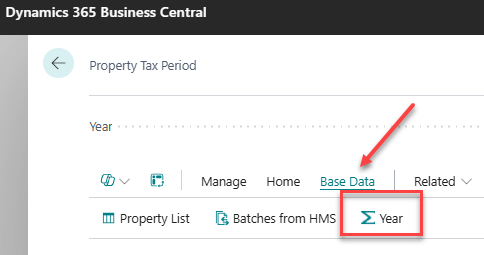
The first step is to create the year you intend to work on(these instructions use the year 2025 as an example). Click Year button to open the corresponding window.
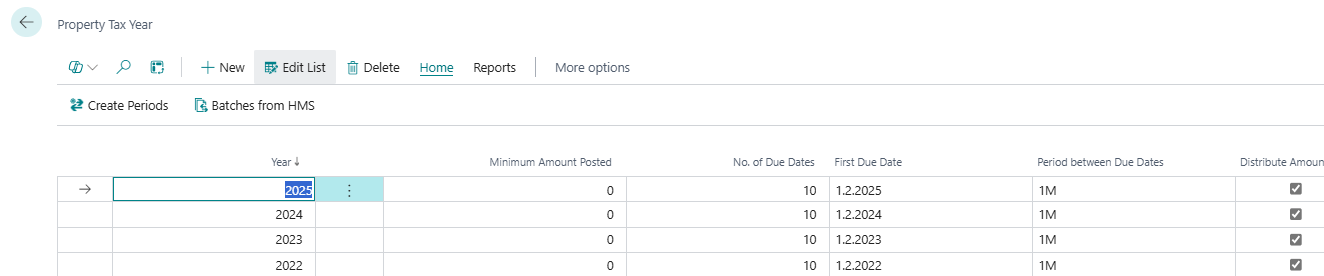
Add a new line by clicking the New button or by entering a line at the bottom of the list. Enter the year, the minimum installment amount, the number of installments for the year, the date of the first installment, and the interval between installments.
Finally, there is a checkbox that determines whether the initial assessment should be distributed over X months. Make sure to check this box.
Then click the Create Periods button.
When prompted to confirm, select Yes to proceed with creating the periods.
Transferred Charges
The system allows municipal charges to be transferred directly within operation entities. Before the property tax period process begins, it is important to ensure that the national ID numbers (kennitala) for entities (under the municipality) to be directly charged are properly configured in the system.
This is done by navigating to Setup > Owned Ids.
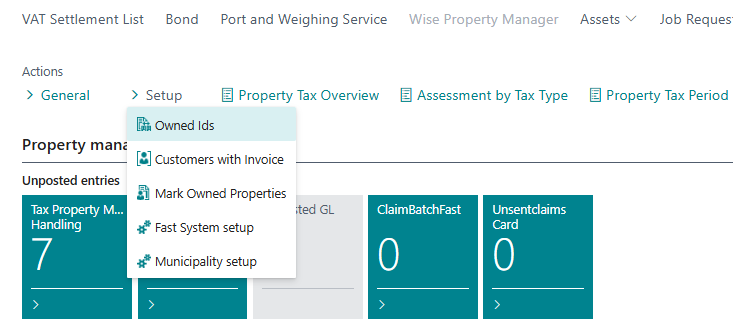
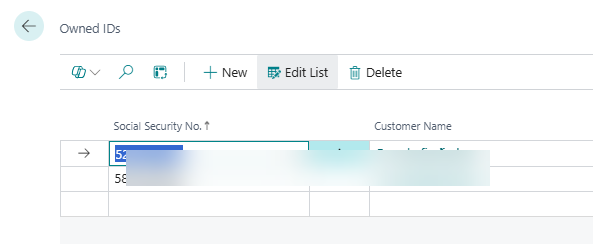
A window will then open where you can enter the national ID numbers (kennitala) of the entities to which charges should be transferred.
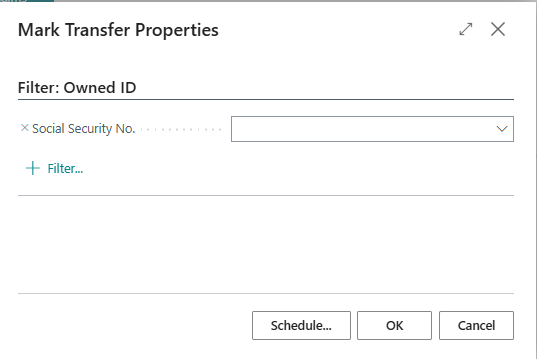
Once the national ID numbers have been entered, all properties associated with those IDs must be marked for transfer. This is done by running the process called Mark Owned Properties (found under Setup).
This process must be run at the beginning of each year, and again whenever properties are added to or removed from the relevant national ID numbers.
RSM Customers
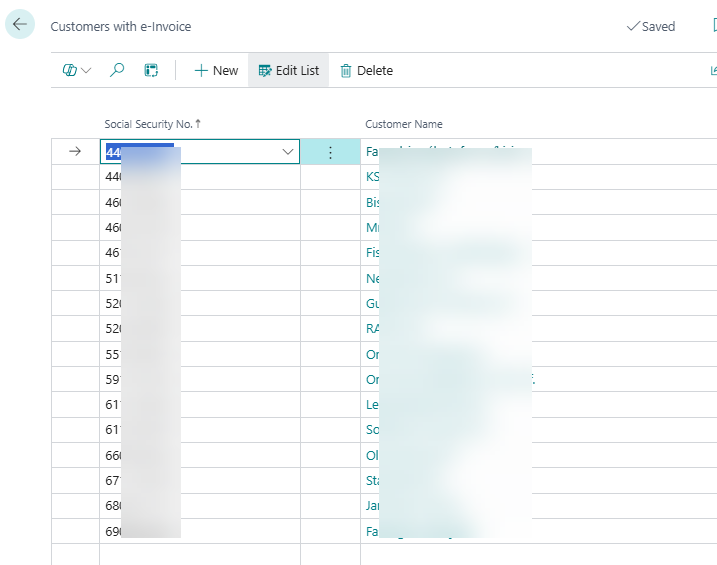
This step is only required for users who have the RSM system set up and wish to send property tax invoices electronically. It is necessary to specify which customers should be included in this process. This is done by navigating to Setup > Customers with Invoice.
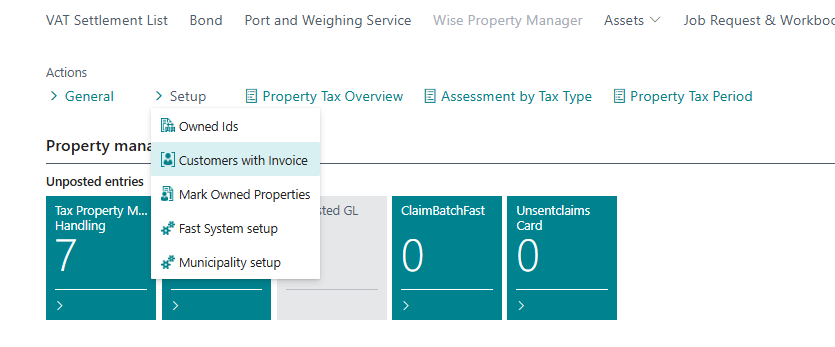
A window will then open where you enter the national ID number (kennitala) of the customer who should be included in this process.
It is also important that the customer is registered as an RSM Customer. To do this, open the customer card for the relevant customer and click “Add customer to Wise e-invoice”. If the customer is not already registered, a new line will be created for them with default settings (these default settings are defined in the RSM system setup).
