
In exceptional cases, the system may be unable to process certain imported changes without manual intervention. When such cases occur, they are displayed in the Error List column on the Property Tax Period page.
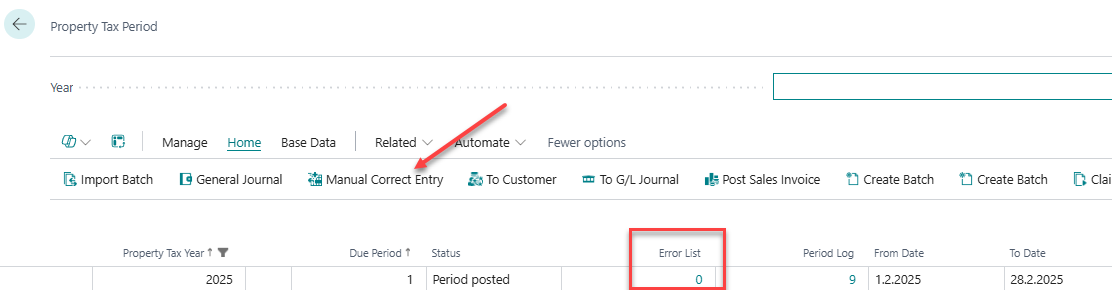
You can select the period containing the error and click the Manual Correct Entry button, or click the number in the Error List column to view the entries marked with an error.

The next step is to open the property card for each of the affected properties and correct the error. The best way to do this is to select one of the lines associated with the property and click the Property button on the card.
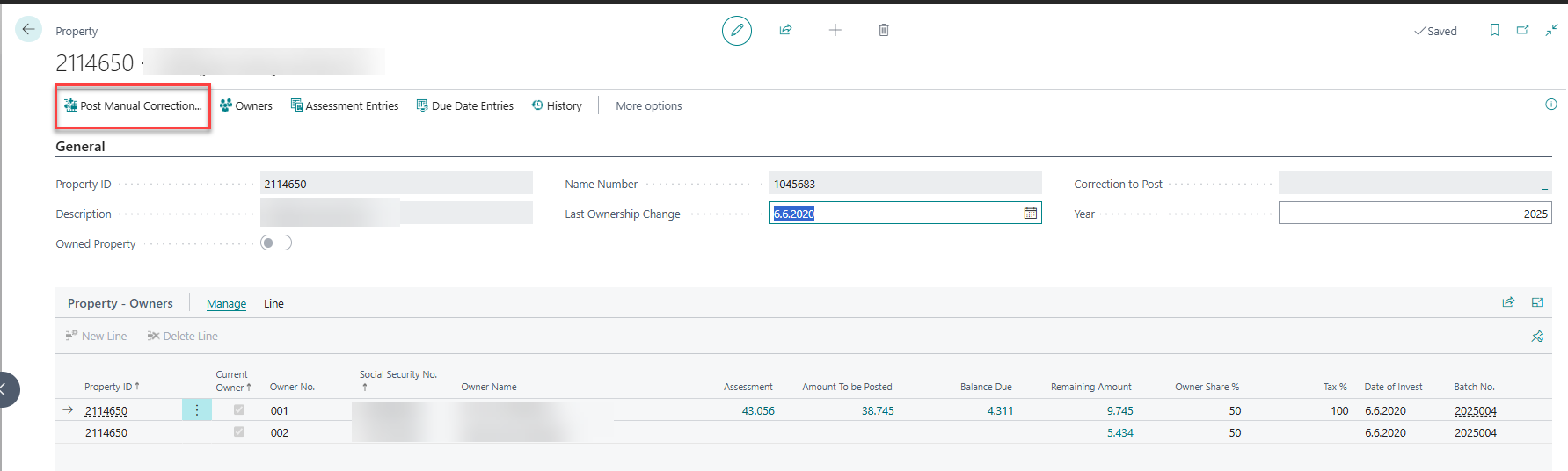
To get a clearer overview of the ownership changes, it is recommended to enter the current year in the Year field to filter the displayed entries. After that, it is best to click Post Manual Correction.
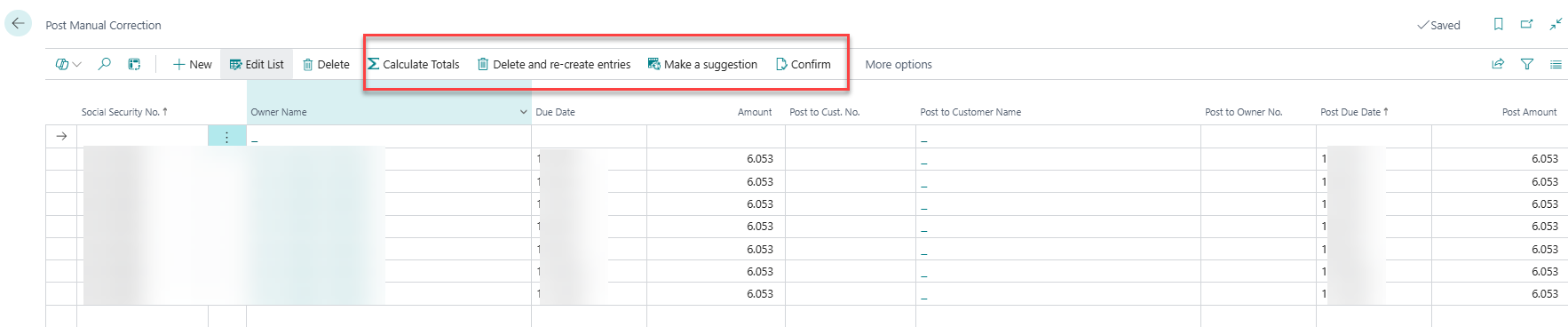
Click Make a suggestion, and the system will prepare the entries based on what it determines to be the correct setup.
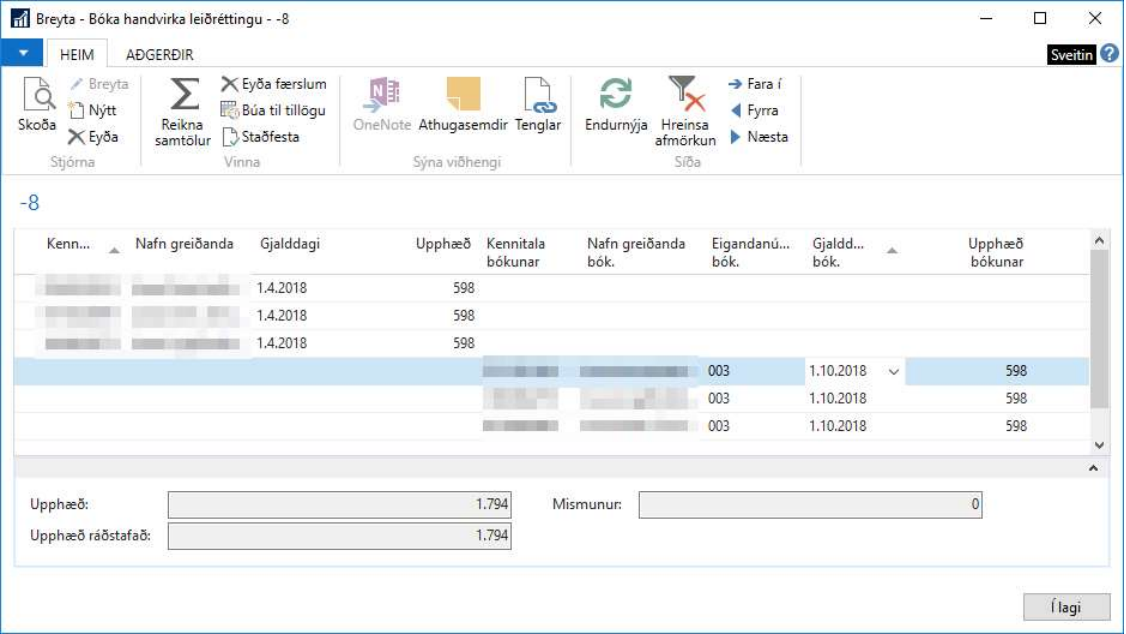
The lines on the left represent the original entries, while the lines on the right show the new entries. Here, you can make adjustments before confirming the changes. For example, you may assign one individual as the payer instead of distributing the charges among all owners. You can also adjust the number of due dates to suit your needs. Once the entries are correct, click Confirm.
After completing this process for all entries, you can continue with the assessment workflow and proceed to charge the customers.