
The next steps in the process take place in other parts of the system and will therefore only be briefly outlined here.
Create Batch
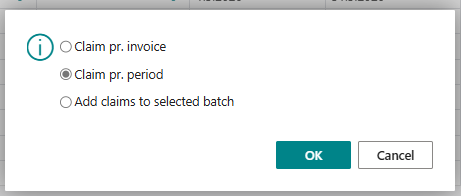
The next step is to create a claim batch

You choose “Claim pr. period”
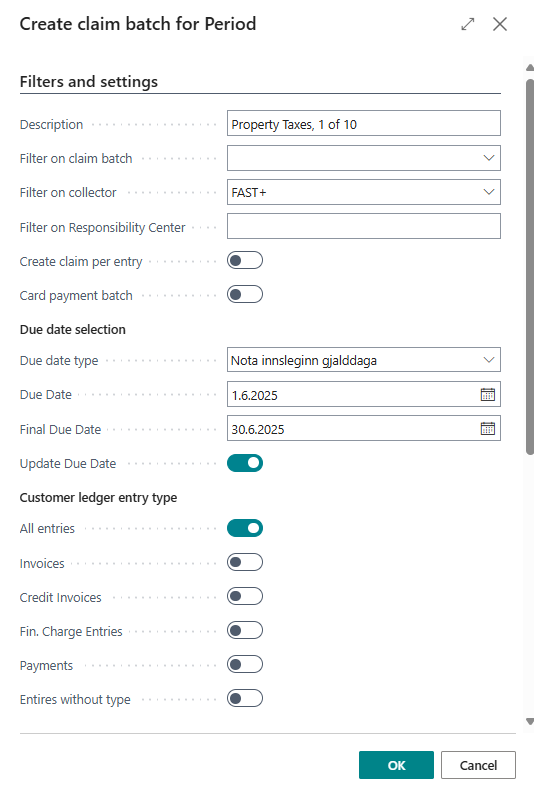
Enter a description, select the correct collector agent, and under due date selection, choose Use entered due date. Specify the due date and final due date, and check the box Update due date.
The transaction type must be set to All entries.
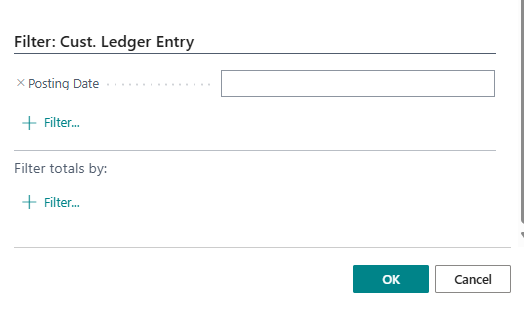
Then scroll to the bottom of the page to the Filter: Cust. Ledger Entry section and enter the posting date for the transactions to be sent to the bank.
The claim run should be created and opened, and it can be sent to the bank directly from the form.
When prompted whether the claim run has been created, select Yes.
Create a direct debit batch
This step only applies to municipalities that offer direct debit as a payment option.

Click Create Direct Debit Batch, and in the window that opens, select the appropriate collector agent and the property tax claim batch no..
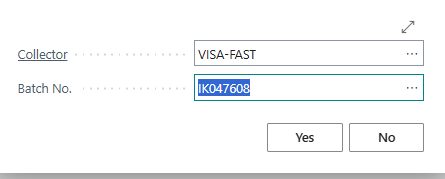
The direct debit form should open, and the batch can be sent to the bank directly from the form. When the form is closed, a prompt should appear asking whether the batch was created. Select Yes.
Send electronic invoices
This step only needs to be performed if there are customers configured to receive electronic invoices. If no such customers exist, this step can be skipped.

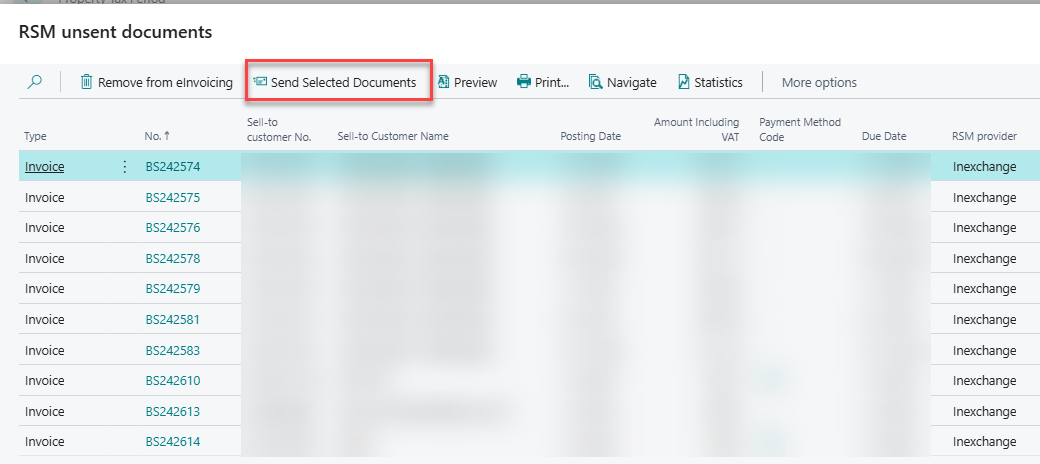
When the button is clicked, a window opens displaying all “RSM unsent documents”. This list includes all unsent RSM invoices, not just those related to property taxes.
Select the appropriate invoices and click Send selected Documents.
When the form is closed, a prompt should appear asking whether the electronic invoices have been sent. Select Yes.