
Overview
The Property Taxes Setup page is the central configuration hub for the entire Wise Property Manager system. It controls how property taxes are processed, posted, and integrated with Business Central's standard functionality.
Location: Search for "Property Taxes Setup" in Business Central, or access from Administration menu under Municipality Systems - Wise Property Manager - Setup - Fast System setup.
Purpose: Configure system-wide settings for property tax processing, general ledger integration, web services, and payment methods.
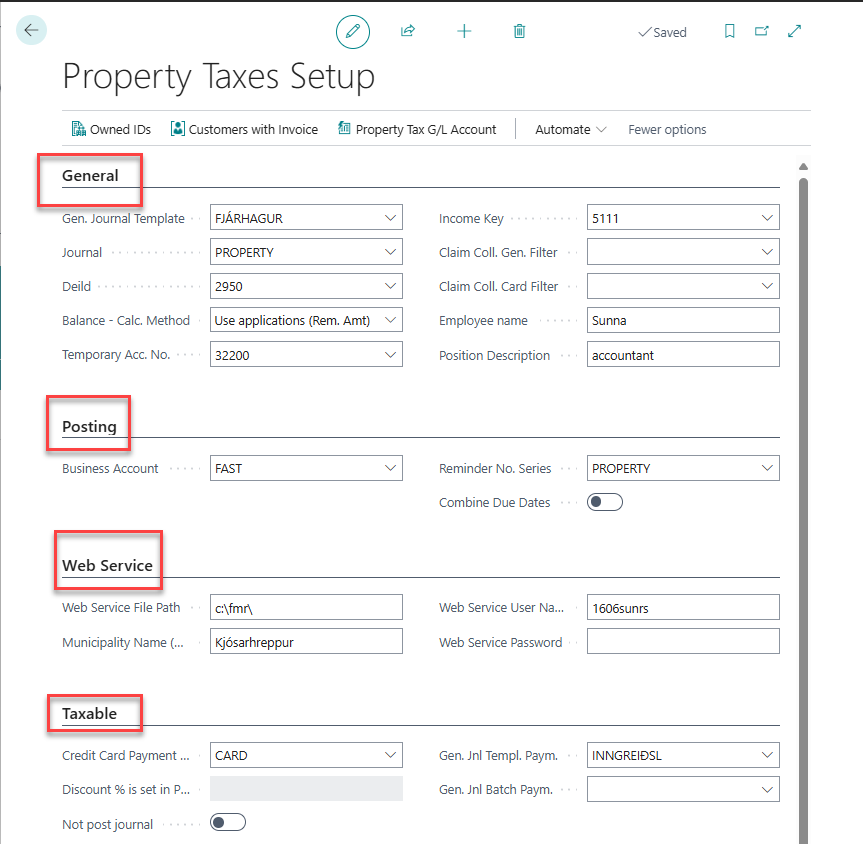
Key Fields & Actions
General Section
|
Field |
Description |
Required |
|---|---|---|
|
Gen. Jnl Template |
General journal template for property tax entries |
Yes |
|
Journal |
General journal batch for posting transactions |
Yes |
|
Dimension 1 Code |
Default global dimension 1 for property transactions |
No |
|
Balance - Calc. Method |
Method for calculating outstanding balances |
Yes |
|
Temporary Acc. No. |
G/L account for temporary postings |
No |
|
Income Key |
Revenue classification key |
No |
|
Employee Name |
Responsible employee for system |
No |
|
Job Description |
Employee's job title |
No |
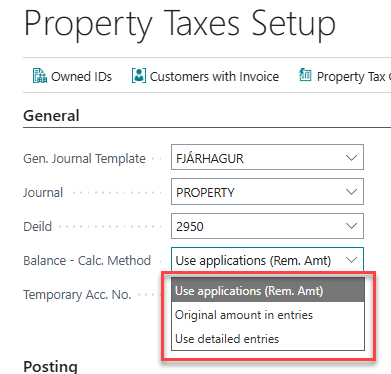
Balance Calculation Methods
-
Use Applications: Calculate based on payment applications
-
Original Amount in Entries: Use original entry amounts
-
Use Detailed Entries: Calculate from detailed ledger entries
Posting Section
|
Field |
Description |
Purpose |
|---|---|---|
|
Business Account Code |
Account code for business transactions |
G/L posting |
|
No. of Due Dates |
Number of payment installments |
Due date creation |
|
First Due Date |
Date of first payment |
Due date scheduling |
|
Period betw. Due Dates |
Days between payment due dates |
Installment spacing |
|
Minimum Amount Posted |
Smallest amount to post |
Posting threshold |
|
Reminder No. Series |
Number series for collection notices |
Document numbering |
|
Combine Due Dates |
Consolidate multiple due dates |
Payment simplification |
Web Service Section
|
Field |
Description |
Usage |
|---|---|---|
|
Web Service File Path |
Path for web service exports |
Customer portal integration |
|
Municipality Name (Web S.) |
Municipality name for web display |
Portal branding |
|
Web Service User Name |
Username for web service access |
Authentication |
|
Web Service Password |
Password for web service access |
Security |
Taxable Section
|
Field |
Description |
Application |
|---|---|---|
|
Credit Card Payment Method |
Payment method code for credit cards |
Payment processing |
|
Not Post Journal |
Skip automatic journal posting |
Manual review option |
|
Gen. Jnl Templ. Paym. |
Journal template for payments |
Payment posting |
|
Gen. Jnl Batch Paym. |
Journal batch for payments |
Payment organization |
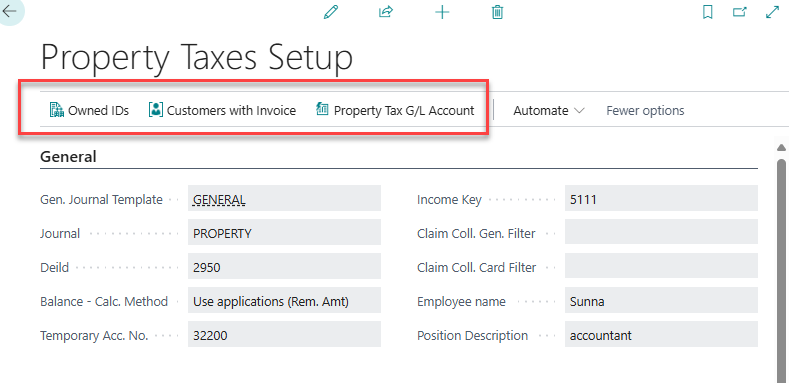
Main Actions
|
Action |
Description |
Opens |
|---|---|---|
|
Owned IDs |
Manage municipality-owned properties |
Owned IDs page |
|
Customers with Invoice |
View customers with electronic invoicing |
Customer list |
|
Property Tax G/L Account |
Configure G/L accounts for tax types |
Account setup page |
Step-by-Step Tasks
Initial System Setup
-
Access Setup Page
-
Search for "Property Taxes Setup"
-
Open the setup card (only one record exists)
-
-
Configure General Settings
-
Set Gen. Jnl Template: Use existing template (e.g., "GENERAL")
-
Set Journal: Create dedicated batch (e.g., "PROPTAX")
-
Choose Balance - Calc. Method: Typically "Use Applications"
-
Optional: Set Dimension 1 Code for departmental tracking
-
-
Set Up Posting Options
-
Configure Business Account Code if required
-
Set Reminder No. Series for collection notices
-
Choose Combine Due Dates based on municipality policy
-
-
Configure Web Services (if using customer portal)
-
Set Web Service File Path for data exports
-
Enter Municipality Name for portal display
-
Configure authentication credentials
-
Update Payment Processing
-
Configure Payment Methods
-
Set Credit Card Payment Method code
-
Choose journal templates for payment processing
-
Enable/disable automatic journal posting
-
-
Test Configuration
-
Post sample property tax entries
-
Verify G/L posting works correctly
-
Test web service export functionality
-
Modify Balance Calculation
-
Review Current Method
-
Check existing Balance - Calc. Method
-
Assess accuracy of outstanding balance calculations
-
-
Change Method if Needed
-
Select appropriate calculation method
-
Test with sample properties
-
Verify results match expectations
-
Related Pages
-
Property Tax G/L Accounts - Configure accounts for each tax type
-
Owned IDs - Municipality-owned property management
-
Property List - Main property management
-
Import Batches - Data import from land registry
What Happens After Setup
Immediate Effects
-
Property tax posting uses configured journal templates
-
Balance calculations follow selected method
-
Web service exports use specified settings
-
Payment processing follows configured methods
Integration Points
-
General Ledger: Uses configured journal templates and batches
-
Dimensions: Default dimension applies to all property transactions
-
Customer Portal: Web service settings enable online property viewing
-
Payment Processing: Credit card and payment journal settings take effect
Navigation Path: Municipality Systems → Wise Property Manager → Setup → Fast System Setup
Permissions Required: SVEFAST FASTEIGNAGJÖLD (full), System Administrator
Related Tables: SveFast Property Taxes Setup, General Journal Template, Number Series