
Overview
Assessment Entries provide a comprehensive transaction history of all property tax assessments within the system. This feature serves as the central repository for tracking assessment values, changes, and the complete lifecycle of property taxation from initial assessment through final collection.
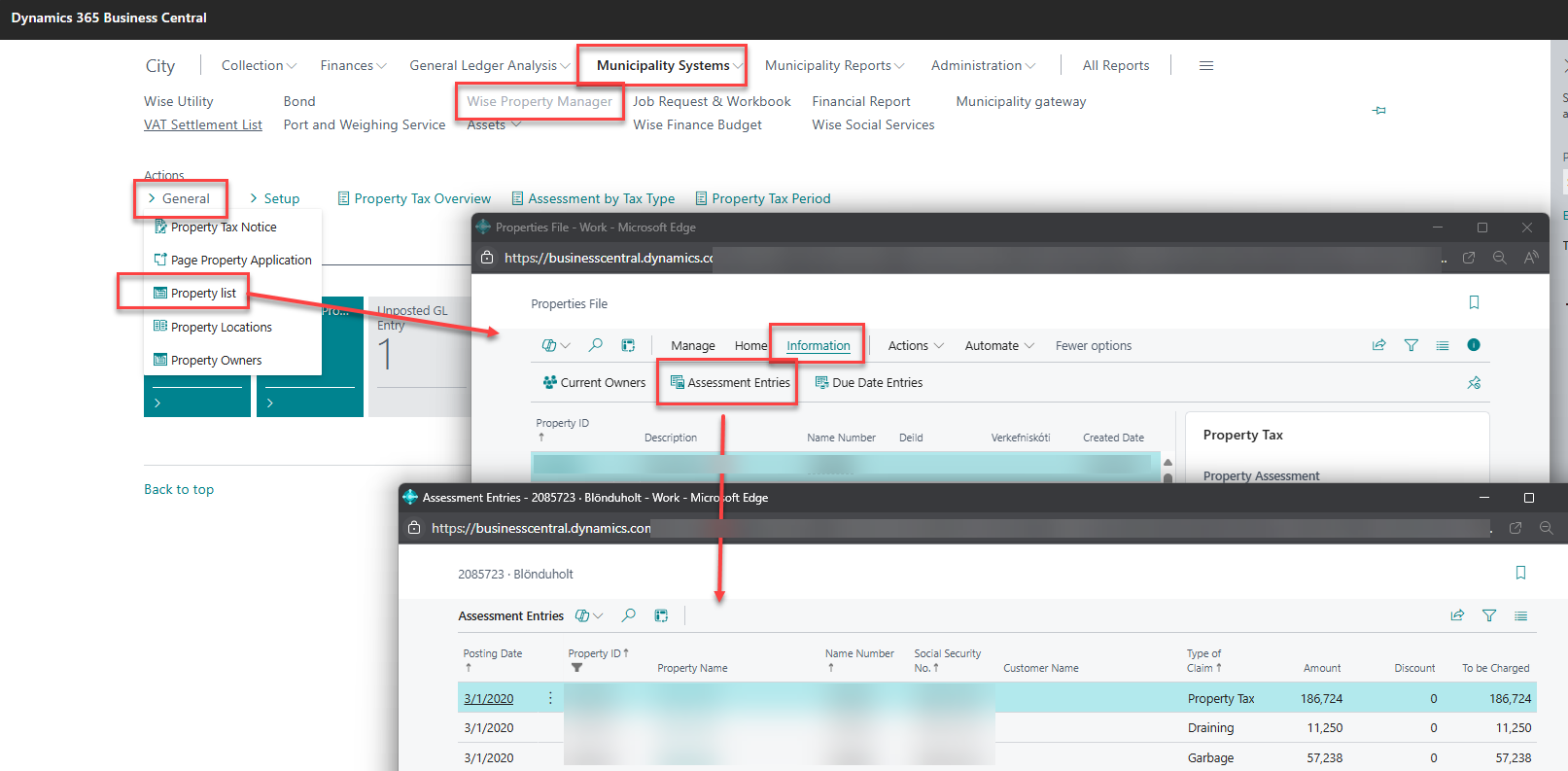
Key Fields
Property ID
-
Purpose: Unique identifier linking assessment to specific property
-
Format: Alphanumeric code following municipal standards
-
Usage: Primary key for property lookup and reporting
Type of Claim
-
Options:
-
Real Property: Land and building assessments
-
Personal Property: Business equipment and fixtures
-
Special Assessment: Infrastructure and improvement charges
-
Supplemental: Mid-year assessment changes
-
-
Impact: Determines calculation methods and due dates
Amount
-
Purpose: Dollar value of the tax assessment
-
Format: Currency format with two decimal places
-
Calculation: Based on assessed value × tax rate
-
Validation: Must be positive, within reasonable ranges
Posting Date
-
Purpose: Date when assessment was officially recorded
-
Format: Standard date format (MM/DD/YYYY)
-
Significance: Determines tax year and due date calculations
-
Audit Trail: Cannot be modified once posted
Status
-
Options:
-
Draft: Assessment calculated but not official
-
Posted: Assessment is active and due
-
Adjusted: Original assessment has been modified
-
Cancelled: Assessment has been voided
-
-
Impact: Controls payment application and reporting
Step-by-Step Guide
Viewing Assessment Entries
-
Navigate to Tax Administration → Assessment Entries
-
Use Filter Options to narrow results:
-
Property ID or address
-
Assessment date range
-
Tax type
-
Status
-
-
Click Search to display matching entries
-
Review results in the assessment grid
Filtering Assessment Data
-
By Property:
-
Enter Property ID in search field
-
Or use address lookup
-
View all assessments for that property
-
-
By Date Range:
-
Set From Date and To Date
-
Useful for monthly or yearly reporting
-
Include posting date or due date criteria
-
-
By Tax Type:
-
Select specific tax types from dropdown
-
Compare different assessment categories
-
Analyze tax type performance
-
-
By Status:
-
Filter active vs. historical assessments
-
Focus on specific workflow stages
-
Identify problem assessments
-
Drilling Down to Details
-
Assessment Summary View:
-
Double-click any assessment entry
-
View complete assessment details
-
Access related property information
-
-
Transaction History:
-
Click History tab
-
See all changes and adjustments
-
Review audit trail information
-
-
Payment Application:
-
Click Payments tab
-
View applied payments
-
Check remaining balance
-
-
Supporting Documentation:
-
Access Documents tab
-
View assessment notices
-
Review supporting calculations
-
Assessment Corrections and Adjustments
Identifying Correction Needs
-
Regular Review Process:
-
Weekly assessment validation
-
Property owner appeals
-
Assessor corrections
-
System calculation errors
-
-
Common Correction Types:
-
Value Adjustments: Correcting assessed values
-
Exemption Applications: Adding tax exemptions
-
Classification Changes: Updating property types
-
Calculation Errors: Fixing rate applications
-
Making Assessment Adjustments
-
Access Original Assessment:
-
Locate the assessment needing correction
-
Verify current status and amounts
-
Document reason for adjustment
-
-
Create Adjustment Entry:
-
Click Adjust button
-
Enter corrected values
-
Add Reason Code and Comments
-
Specify Effective Date
-
-
Review and Post:
-
Verify all adjustment details
-
Check calculation accuracy
-
Post adjustment to create new assessment entry
-
Original entry status changes to "Adjusted"
-
-
Generate Notices:
-
Create revised assessment notice
-
Mail to property owner
-
Update internal records
-
Void and Reissue Process
-
Void Original Assessment:
-
Change status to "Cancelled"
-
Enter void reason and date
-
Preserve audit trail
-
-
Create New Assessment:
-
Enter corrected information
-
Verify all calculations
-
Post new assessment
-
-
Update Payment Applications:
-
Transfer any payments to new assessment
-
Adjust due dates if necessary
-
Issue refunds if overpaid
-
Integration with Land Registry Imports
Import Process Overview
-
Data Reception:
-
Receive land registry updates
-
Validate data format and completeness
-
Check for property changes
-
-
Assessment Impact Analysis:
-
Compare new values to existing assessments
-
Identify properties requiring updates
-
Flag significant value changes
-
-
Batch Processing:
-
Process approved value changes
-
Generate supplemental assessments
-
Update property records
-
Import Validation Steps
-
Pre-Import Checks:
-
Verify file format compliance
-
Check property ID matching
-
Validate value ranges
-
-
Data Mapping:
-
Match land registry fields to system fields
-
Apply business rules and calculations
-
Handle exceptions and errors
-
-
Review and Approval:
-
Generate import summary report
-
Review significant changes
-
Approve batch for processing
-
-
Post-Import Verification:
-
Validate assessment calculations
-
Check for processing errors
-
Generate confirmation reports
-
Reporting and Analysis
Standard Assessment Reports
-
Assessment Roll: Complete list of all assessments
-
Assessment Summary: Totals by tax type and status
-
Change Report: All adjustments and corrections
-
Exception Report: Assessments requiring attention
Custom Analysis Options
-
Trend Analysis: Assessment values over time
-
Comparison Reports: Year-over-year changes
-
Collection Analysis: Assessment to collection ratios
-
Performance Metrics: Processing times and accuracy
Best Practices
Data Integrity
-
Regular validation of assessment calculations
-
Consistent use of reason codes
-
Complete documentation of adjustments
-
Timely processing of corrections
Workflow Management
-
Establish clear approval processes
-
Maintain separation of duties
-
Regular supervisor review
-
Exception handling procedures
Audit Compliance
-
Preserve complete transaction history
-
Maintain supporting documentation
-
Regular backup procedures
-
Access control and security
Related Topics
-
Property Tax Period (ID 10003471)
-
Tax Entries (ID 10003492)
-
Property Tax Payments (ID 10003461)
-
Property Management
-
Collection Activities