
Overview
The Property Tax G/L Accounts configuration allows you to assign General Ledger account numbers to different types of property taxes and related charges. This ensures proper financial tracking and reporting by directing tax revenues to the correct accounting categories in your municipal financial system.
Purpose: Configure G/L accounts for automated posting of property tax transactions, water tax, garbage disposal fees, and other property-related charges to maintain accurate financial records.
User Level: Municipal Finance Staff, System Administrators
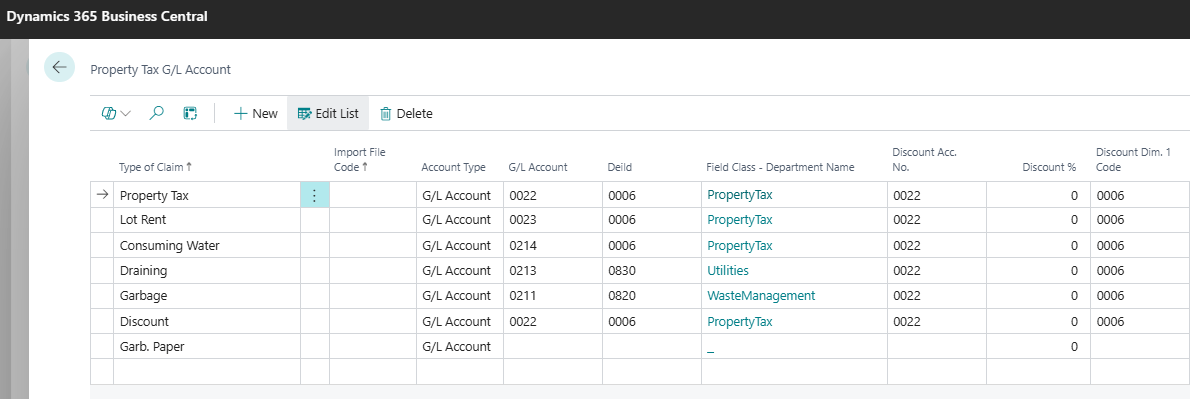
Key Fields & Actions
Primary Configuration Fields
|
Field Name |
Description |
Required |
Example |
|---|---|---|---|
|
Tax Type Code |
Identifier for the type of tax or charge |
Yes |
PROPTAX, WATER, GARBAGE |
|
G/L Account Number |
General Ledger account for posting transactions |
Yes |
4100-001, 4200-002 |
|
Account Description |
Clear description of the account purpose |
Yes |
Property Tax Revenue, Water Service Revenue |
|
Active Status |
Whether this G/L assignment is currently in use |
Yes |
Active/Inactive |
|
Effective Date |
When this G/L assignment becomes active |
Yes |
01/01/2024 |
|
Municipality Code |
Links to specific municipality if multi-municipal |
No |
CITY001, TWP002 |
Available Actions
-
Add New G/L Assignment: Create new tax type to G/L account mapping
-
Modify Existing Assignment: Update account numbers or descriptions
-
Deactivate Assignment: Remove G/L assignment without deleting history
-
Copy Assignment: Duplicate settings for similar tax types
-
Bulk Update: Modify multiple assignments simultaneously
Step-by-Step Tasks
Task 1: Set Up Property Tax G/L Account
-
Access the Configuration
-
Navigate to Municipality Systems → Wise Property Manager → Setup → Fast System Setup → Property Tax GL Account
-
Click "Add New Assignment" button
-
-
Enter Basic Information
-
Tax Type Code: Enter "PROPTAX"
-
Account Description: "Property Tax Revenue - General"
-
Effective Date: Select current fiscal year start date
-
-
Assign G/L Account
-
G/L Account Number: Enter your property tax revenue account (e.g., "4100-001")
-
Verify account exists in your Chart of Accounts
-
Select Active status
-
-
Save and Validate
-
Click "Save" to create the assignment
-
Test with a sample transaction to verify proper posting
-
Task 2: Configure Water Tax G/L Assignment
-
Create Water Tax Assignment
-
Click "Add New Assignment"
-
Tax Type Code: "WATER"
-
Account Description: "Water Service Tax Revenue"
-
-
Set Account Details
-
G/L Account Number: Enter water revenue account (e.g., "4200-001")
-
Effective Date: Select appropriate date
-
Municipality Code: If applicable, select specific municipality
-
-
Activate Assignment
-
Set status to "Active"
-
Save configuration
-
Document the change in your system log
-
Task 3: Set Up Garbage Disposal G/L Account
-
Add Garbage Tax Assignment
-
Tax Type Code: "GARBAGE"
-
Account Description: "Garbage Disposal Fee Revenue"
-
G/L Account Number: Enter waste management revenue account
-
-
Configure Details
-
Set effective date
-
Ensure account number matches Chart of Accounts
-
Activate the assignment
-
Related Pages
-
Reference – Chart of Accounts Setup - Setting up G/L account structure
-
Reference – Tax Type Configuration - Configuring property tax types
-
Reference – Municipality Setup - Managing municipal jurisdictions
-
Guide – Property Tax Posting Process - How transactions post to G/L
-
Reference – Financial Reporting Setup - Configuring tax revenue reports
-
Troubleshooting – G/L Posting Errors - Resolving posting issues
Last Updated: Current Date
Document Version: 1.0
Next Review: Quarterly