
Overview
The Property List page (also called "Properties File") is the central hub for viewing all property records and performing bulk operations. It serves as the primary entry point for property tax management activities, providing quick access to essential property information and actions.
Location: Search for "Properties File" or "Property List" in Business Central, or access from the main menu under Property Management.
Purpose: View all properties, perform batch operations like posting taxes, access payment management, and navigate to detailed property information.
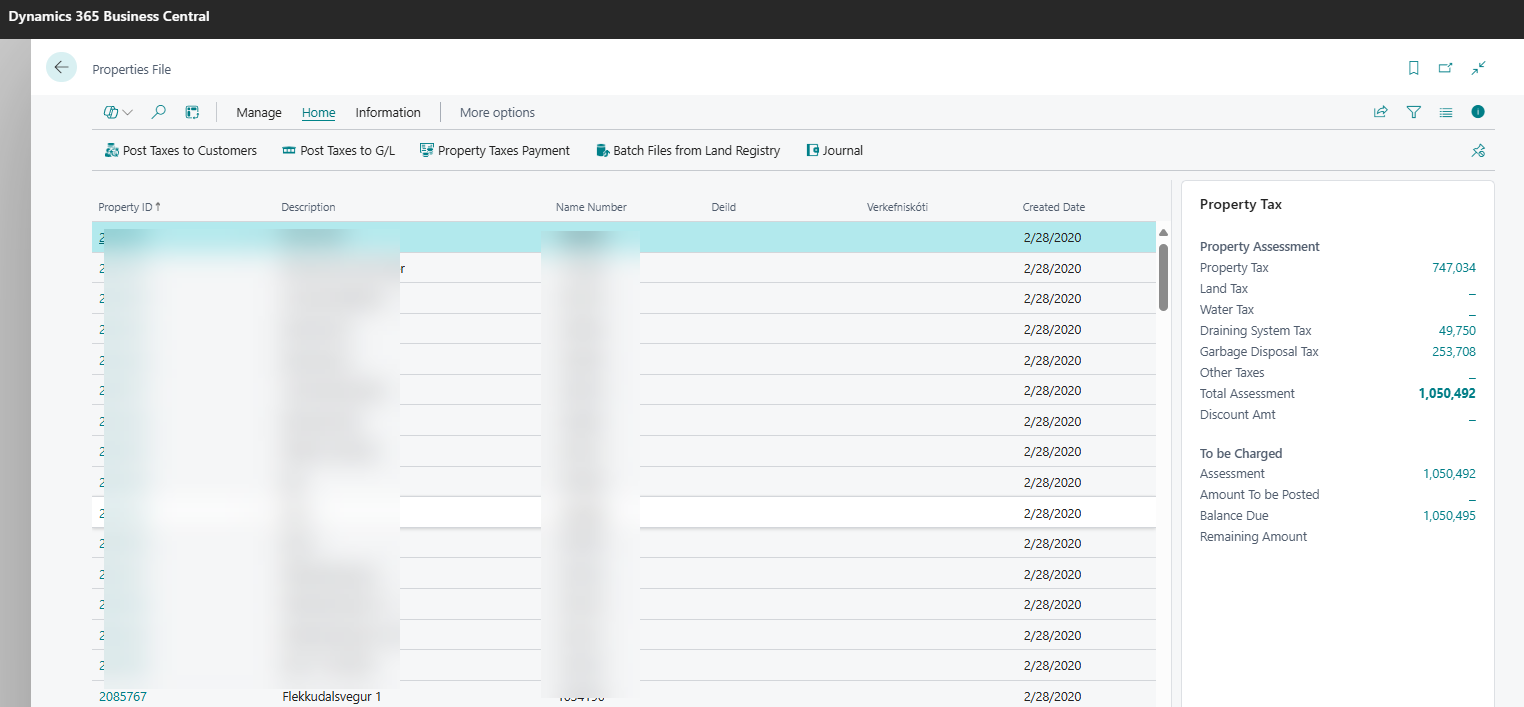
Key Fields & Actions
List Columns
|
Field |
Description |
Visible by Default |
|---|---|---|
|
Property ID |
Unique property identifier |
Yes |
|
Description |
Property address/description |
Yes |
|
Location ID |
Location reference code |
Yes |
|
Global Dimension 1 Code |
Business dimension |
Yes |
|
Global Dimension 2 Code |
Project dimension |
Yes |
|
Date Created |
Property creation date |
Yes |
|
Tax Group |
Tax classification |
Hidden* |
|
Owned Property |
Municipality ownership flag |
Hidden* |
|
Assessment amounts |
Various tax amounts |
Hidden* |
|
Total Assessment |
Sum of all assessments |
Hidden* |
|
Outstanding |
Remaining balance |
Hidden* |
|
Waste Category |
Garbage disposal category |
Hidden* |
*Hidden fields can be shown by personalizing the page
Main Actions
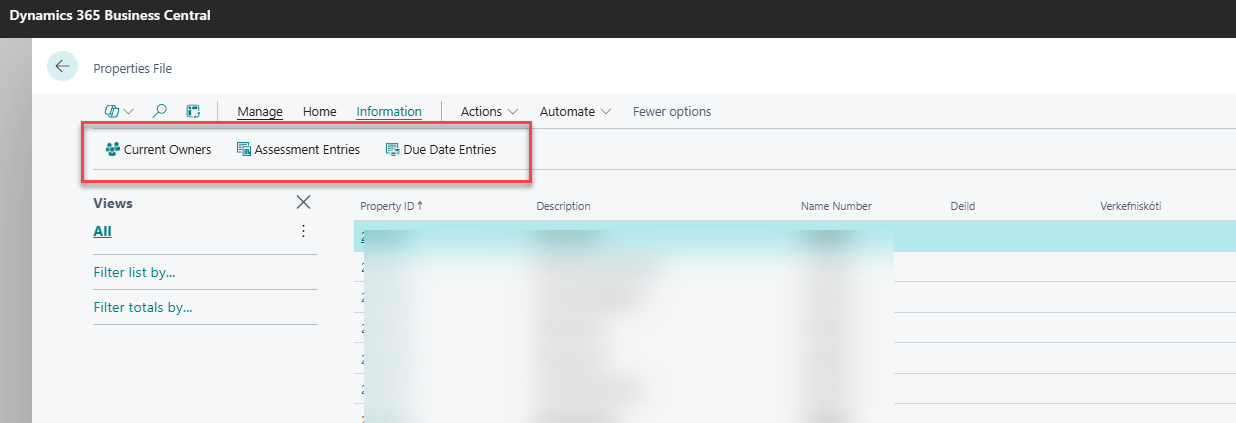
Navigation Actions
|
Action |
Description |
Shortcut |
|---|---|---|
|
Current Owners |
View current property owners only |
|
|
Assessment Entries |
View all tax assessments |
Ctrl+F7 |
|
Due Date Entries |
View payment due dates and amounts |
|
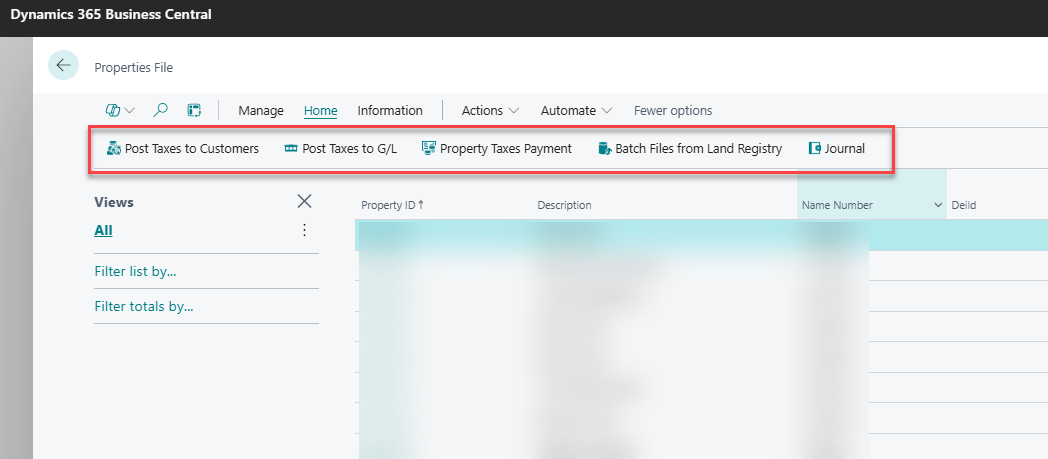
Processing Actions
|
Action |
Description |
Purpose |
|---|---|---|
|
Post Taxes to Customers |
Generate customer invoices from assessments |
Monthly billing process |
|
Post Taxes to G/L |
Post tax entries to general ledger |
Financial reporting |
|
Property Taxes Payment |
Access payment processing interface |
Record and manage payments |
|
Batch Files from Land Registry |
Import assessment data from FMR system |
Data synchronization |
|
Journal |
Open general journal for manual entries |
Financial corrections |
Step-by-Step Tasks
View All Properties
-
Search for "Property List" or "Properties File" in Business Central
-
The list displays all properties in the system
-
Use standard filtering options in column headers to narrow results
-
Click on any property to open the Property Card for detailed view
Filter Properties by Criteria
-
Click the filter icon in any column header
-
Common filters:
-
Property ID: Enter specific ID or range
-
Location ID: Filter by geographic area
-
Tax Group: Filter by property classification
-
Date Created: Filter by registration date range
-
-
Combine multiple filters for specific searches
Post Monthly Taxes to Customers
-
Select properties to process (or leave unselected for all)
-
Click Post Taxes to Customers action
-
Set posting date (usually month-end)
-
Select tax types to post
-
Choose customer posting options
-
Run the posting process
-
Review posting results and error log
Post Taxes to General Ledger
-
Select Post Taxes to G/L action
-
Set posting date for financial reporting
-
Select tax types and periods
-
Choose G/L account assignments
-
Run the posting to create journal entries
-
Verify G/L entries in the general ledger
Process Property Payments
-
Click Property Taxes Payment action
-
Access payment processing interface
-
Import payment files from banks
-
Match payments to specific properties
-
Apply payments and update outstanding balances
Import Assessment Data
-
Click Batch Files from Land Registry action
-
Review available import batches from FMR system
-
Process new batches to update assessments
-
Validate imported data before posting
-
Post processed batches to update property taxes
Common Errors & Fixes
"No properties to post"
Cause: Properties may already be posted or filters are too restrictive
Fix:
-
Check date filters and posting status
-
Verify assessment entries exist for the period
-
Clear filters to view all properties
"Posting date not allowed"
Cause: Posting date is outside allowed range
Fix:
-
Check user setup for posting date range
-
Verify accounting period is open
-
Contact system administrator to adjust date ranges
"Tax accounts not set up"
Cause: Property Tax G/L accounts not configured
Fix:
-
Configure Property Tax G/L Accounts setup page
-
Assign accounts for each tax type
-
Set up posting groups if needed
"Import batch errors"
Cause: FMR import files contain validation errors
Fix:
-
Review import batch error log
-
Correct property IDs or owner information
-
Re-import corrected files from land registry
"Payment matching issues"
Cause: Bank payment files don't match property information
Fix:
-
Verify property ID format in payment files
-
Check customer number assignments
-
Use manual payment application if needed
Related Pages
-
Property Card - Individual property details
-
Property Taxes Setup - System configuration
-
Import Batches - Land registry data import
-
Property Tax Payments - Payment management
-
Assessment Entries - Tax assessment records
-
Post Taxes to Customer Report - Customer billing
-
Post Taxes to G/L Report - General ledger posting
Navigation Path: Municipality Systems - Wise Property Manager - General → Property List
Permissions Required: SVEFAST FASTEIGNAGJÖLD, WISELCS BASIC
Related Tables: SveFast Property, SveFast Property Owner, SveFast Assessment Entry