
The Workbook system provides comprehensive time tracking for municipal employees, integrating with job requests, projects, and payroll processing. This system ensures accurate time recording, cost allocation, and resource management.
Accessing the Workbook
Navigate to Municipality Systems > Job Requests & Workbook from the Municipal Manager Role Center.
Workbook Setup and Configuration
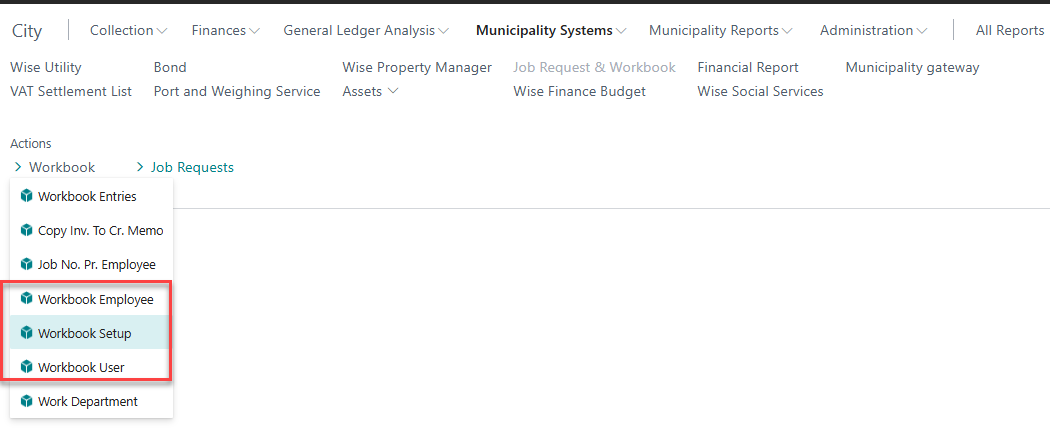
Before using the workbook, you have to go first to “workbook setup” and finish the setup there, then go to Workbook user and create the users and then go to Workbook employee
Workbook Configuration
Configure system-wide workbook settings:
-
Open Workbook Setup from Administration
-
Configure General Settings:
-
Working Hours per Day: Standard work hours
-
Working Days per Week: Standard work week
-
Overtime Threshold: When overtime begins
-
Time Rounding: How to round time entries
-
-
Configure Integration Settings:
-
Job Journal Integration: Link to job costing
-
Payroll Integration: Connect to salary processing
-
Automatic Posting: When to post time entries
-
Employee Setup
Before using the workbook, employees must be configured:
-
Navigate to Administration > Workbook Setup > Workbook Employees
-
Click New to add an employee
-
Configure Employee Information:
-
Employee No.: Link to standard Business Central employee
-
Name: Employee full name
-
Department: Work department assignment
-
Default Job: Default job for time tracking
-
Resource Type: Employee or Resource classification
-
Department Configuration
Set up work departments for proper time allocation:
-
Navigate to Work Departments from Workbook Setup
-
Configure each department:
-
Department Code: Unique identifier
-
Description: Department name
-
Default Dimension: Link to GL dimensions
-
Manager: Department supervisor
-
Cost Center: Link to cost accounting
-
Daily Time Entry
Creating Time Entries
-
Open the Workbook for current date
-
Select Employee from the list
-
Add time entries by clicking New Line
-
Configure each time entry:
-
Job No.: Project or job number
-
Job Task No.: Specific task within job
-
Work Type: Regular, Overtime, Travel, etc.
-
Hours: Time spent (decimal format)
-
Description: Work performed description
-
Work Type Categories
Standard Work Types
-
Regular Hours: Normal working time
-
Overtime: Time beyond standard hours
-
Travel Time: Time spent traveling for work
-
Training: Professional development time
-
Meeting Time: Internal and external meetings
Specialized Work Types
-
Emergency Response: After-hours emergency work
-
Equipment Operation: Machinery and vehicle operation
-
Maintenance: Facility and equipment maintenance
-
Administrative: Office and administrative tasks
Resource and Material Tracking
Beyond time tracking, the workbook supports:
Equipment Usage
-
Machine Hours: Track equipment operation time
-
Vehicle Usage: Track municipal vehicle usage
-
Tool Allocation: Assign tools to specific jobs
-
Fuel Consumption: Record fuel usage for mobile equipment
Material Consumption
-
Materials Used: Track materials consumed on jobs
-
Quantity: Amount of materials used
-
Cost: Material cost allocation
-
Supplier: Where materials were obtained
Integration with Job Requests
Linking Time to Job Requests
When working on job requests:
-
Select Job Request: Choose from active job requests
-
Automatic Population: System fills job and task information
-
Status Updates: Time entry can update job request status
-
Completion Tracking: Track progress against estimates
Job Request Time Analysis
The system provides analysis of:
-
Time vs. Estimates: Actual time compared to original estimates
-
Resource Utilization: Which employees worked on which requests
-
Cost Analysis: Total cost including time, materials, and equipment
-
Completion Rates: How long different types of requests take
Weekly and Monthly Processing
Weekly Review
At the end of each week:
-
Review Entries: Check all time entries for accuracy
-
Approve Hours: Department managers approve employee time
-
Correct Errors: Fix any incorrect entries or allocations
-
Submit for Processing: Mark week as ready for payroll
Monthly Processing
Monthly workbook processing includes:
-
Generate Job Journal Lines: Create job costing entries
-
Process Payroll Data: Send time to payroll system
-
Cost Allocation: Allocate costs to departments and projects
-
Generate Reports: Create monthly time and cost reports
Approval Workflow
Manager Approval Process
Department managers can:
-
Review Team Hours: See all subordinate time entries
-
Approve or Reject: Approve accurate entries, reject incorrect ones
-
Add Comments: Provide feedback on time entries
-
Bulk Approval: Approve multiple entries at once
Approval Status Tracking
Time entries have approval status:
-
Submitted: Employee has entered time
-
Under Review: Manager reviewing entry
-
Approved: Manager has approved entry
-
Rejected: Manager has rejected entry (requires correction)
-
Posted: Entry has been posted to job costing
Reporting and Analysis
Standard Reports
Individual Timesheet
-
Employee's complete time entries for period
-
Job and project allocation
-
Overtime calculation
-
Approval status
Department Summary
-
Total hours by department
-
Project time allocation
-
Overtime analysis
-
Cost center distribution
Job Analysis Report
-
Time spent on each job
-
Resource utilization
-
Cost vs. budget analysis
-
Completion progress
Performance Analytics
Employee Performance
-
Productivity Metrics: Hours worked vs. standard
-
Project Efficiency: Time spent vs. estimates
-
Utilization Rates: Billable vs. non-billable time
-
Overtime Trends: Overtime patterns and causes
Department Performance
-
Resource Allocation: How department time is distributed
-
Cost Management: Department costs vs. budget
-
Project Delivery: Department project completion rates
-
Efficiency Comparisons: Compare departments
Mobile and Remote Access
Mobile Time Entry
The system supports mobile time entry through:
-
Web Portal: Browser-based mobile interface
-
API Integration: Third-party mobile apps
-
Offline Capability: Enter time offline, sync later
-
GPS Integration: Location tracking for field work
Remote Work Support
For remote workers:
-
Home Office Time: Track time worked from home
-
Client Site Time: Track time at client locations
-
Travel Time: Automatically calculate travel time
-
Expense Integration: Link expenses to time entries
Integration with Payroll
Automatic Payroll Data Generation
The workbook automatically generates:
-
Regular Hours: Standard working time
-
Overtime Hours: Time beyond standard hours
-
Premium Hours: Holiday and special rate time
-
Allowances: Travel and other allowances
Payroll Export Formats
The system supports various payroll exports:
-
Standard Payroll: Regular payroll processing
-
Third-Party Systems: Export to external payroll providers
-
Government Reporting: RSK and tax authority formats
-
Union Reporting: Union hour reporting requirements
Quality Control and Validation
Data Validation Rules
The system enforces:
-
Maximum Daily Hours: Prevent excessive hour entries
-
Minimum Time Increments: Round to appropriate intervals
-
Job Code Validation: Ensure valid job assignments
-
Department Limits: Check department budget limits
Exception Reporting
Automatic detection of:
-
Unusual Hour Patterns: Significantly high or low hours
-
Missing Time Entries: Employees with no time recorded
-
Unapproved Overtime: Overtime without prior approval
-
Budget Overruns: Projects exceeding time budgets
Common Issues and Solutions
Error: "Cannot post time to closed job"
Solution:
-
Check if job status is still open
-
Verify job task allows time recording
-
Contact project manager to reopen job if needed
-
Use alternative job code if work has changed
Error: "Employee not found in workbook setup"
Solution:
-
Add employee to Workbook Employees list
-
Configure employee with appropriate defaults
-
Assign employee to correct department
-
Verify employee is active in system
Issue: Time entries not appearing in payroll
Solution:
-
Ensure time entries are approved
-
Check payroll export configuration
-
Verify employee payroll setup
-
Run payroll export process manually
Issue: Manager cannot see employee time entries
Solution:
-
Verify manager assignment in employee setup
-
Check department manager configuration
-
Confirm user permissions for workbook approval
-
Ensure employee is in correct department
Best Practices
Time Entry Practices
-
Enter time daily for accuracy
-
Use descriptive work descriptions
-
Allocate time to appropriate jobs
-
Submit time entries promptly for approval
Management Practices
-
Review and approve time weekly
-
Monitor department time budgets
-
Investigate unusual time patterns
-
Provide feedback on rejected entries
System Maintenance
-
Regular cleanup of old time entries
-
Monitor system performance
-
Update employee assignments as needed
-
Review and update work type categories
The Workbook and Time Tracking system provides comprehensive time management capabilities while ensuring accurate cost allocation and payroll integration for municipal operations.