
The Import Journals module in Wise Municipal Manager provides powerful tools for importing financial data from Excel files into various journal types. This functionality streamlines data entry processes and ensures accurate transfer of external financial information into Business Central.
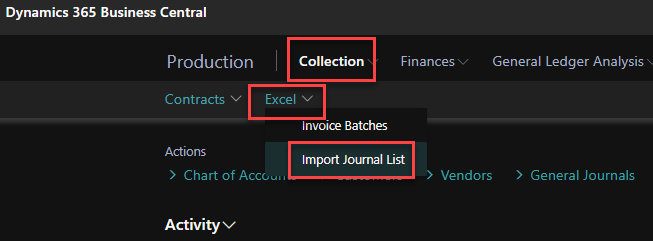

Key Features
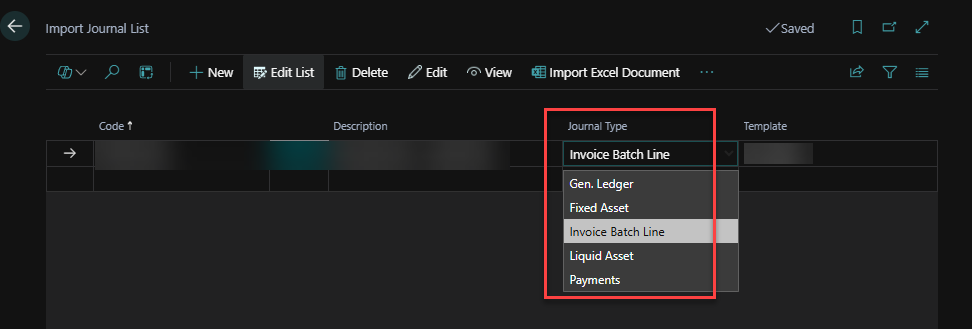
Multi-Journal Support
-
General Ledger Journals: Import standard general ledger transactions
-
Fixed Asset Journals: Import fixed asset acquisitions and depreciation
-
Payment Journals: Import vendor payments with automatic vendor creation
-
Invoice Batch Lines: Import customer invoicing data with line-level detail
-
Liquid Asset Management: Import movable asset registrations
Advanced Excel Integration
-
Flexible Column Mapping: Map Excel columns to Business Central fields
-
Sheet Selection: Choose specific worksheets from Excel workbooks
-
Header Line Handling: Skip header rows automatically
-
Multi-dimensional Data: Support for departments, projects, and business accounts
-
Data Validation: Built-in validation and error checking
Automated Processing
-
Document Number Generation: Automatic document numbering
-
Customer/Vendor Creation: Auto-create missing customers and vendors
-
Business Account Mapping: Complex mapping based on account, dimension, and business account combinations
-
Dimension Management: Automatic dimension code validation and assignment
Journal Types and Applications
1. General Ledger Journals
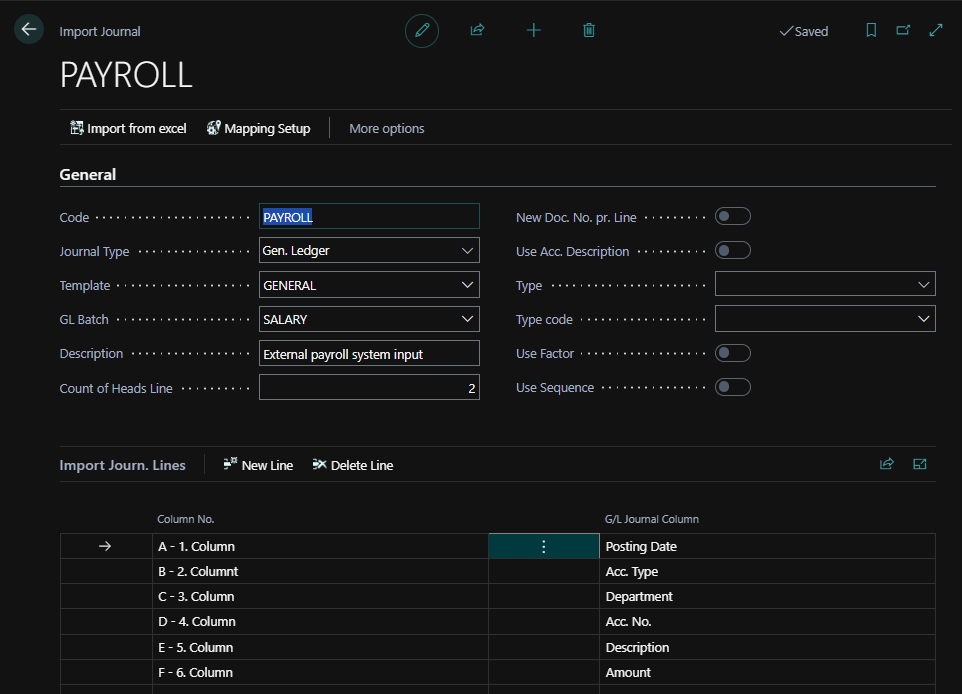
Purpose
Import standard accounting transactions from external systems or spreadsheets into Business Central general journals.
Supported Fields
-
Account Information: Account type, account number, description
-
Transaction Details: Posting date, document type, document number, amount
-
Dimensions: Department (Global Dimension 1), Project (Global Dimension 2)
-
Business Classification: Business account codes for municipal categorization
-
Additional Fields: Source code, job number, external document number
-
Fixed Asset Fields: FA posting type, depreciation book code
-
Balance Account: Balancing account type and number with dimensions
Column Mapping Options
-
Account Type: G/L Account, Customer, Vendor, Bank Account, Fixed Asset
-
Account Number: With automatic formatting and validation
-
Posting Date: Date validation and format conversion
-
Document Type: Payment, Invoice, Credit Memo, Finance Charge Memo, Reminder, Refund
-
Description: Text concatenation from multiple columns
-
Amount: Numeric validation with decimal handling
-
Dimensions: Department and project code validation
-
Business Account: Municipal business account classification
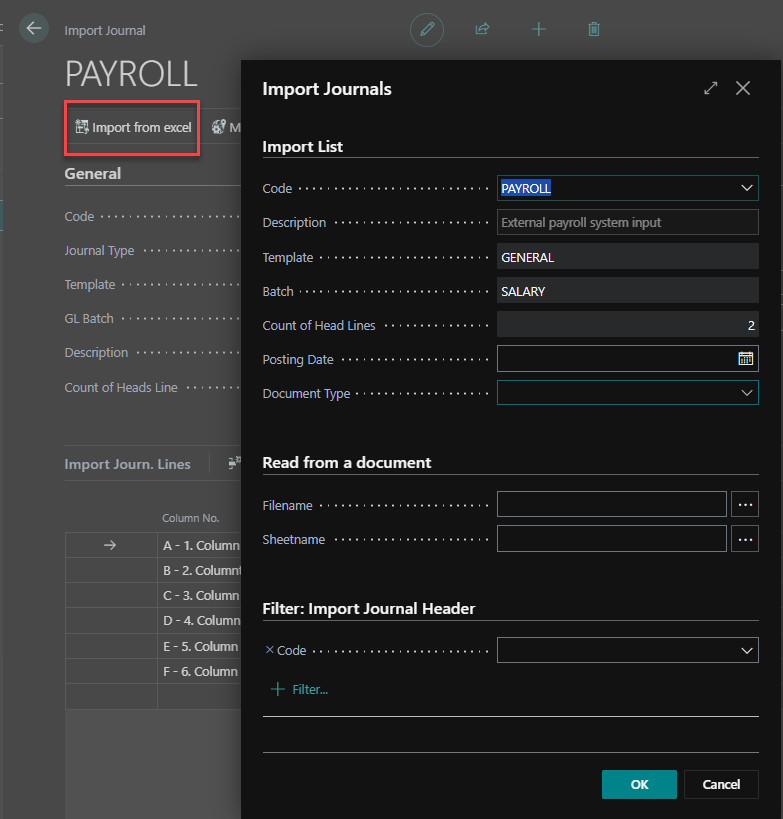
Import Process
-
Setup: Define import template with column mappings
-
File Upload: Select Excel file and worksheet
-
Preview: Review data mapping and validation results
-
Import: Process data into selected general journal batch
-
Review: Verify imported transactions in General Journal
2. Fixed Asset Journals
Purpose
Import fixed asset transactions including acquisitions, depreciation, and disposals.
Supported Fields
-
Asset Information: Fixed asset number, posting group
-
Transaction Types: Initial cost, depreciation, write-down, appreciation, disposal
-
Financial Details: Amount, salvage value, depreciation book
-
Documentation: Document number, external document number, description
-
Date Management: Posting date, document date, FA posting date
FA Posting Types
-
Initial Cost (Stofnkostnaður): Asset acquisition costs
-
Depreciation (Afskriftir): Periodic depreciation entries
-
Write-Down (Niðurfærsla): Asset impairment adjustments
-
Appreciation (Uppfærsla): Asset revaluation increases
-
Maintenance (Viðhald): Maintenance and repair costs
Screenshot Placeholder: Fixed Asset import showing posting type selection and asset mapping
3. Payment Journals
Purpose
Import vendor payment information with automatic vendor creation and bank account setup.
Supported Fields
-
Payment Details: Amount, posting date, document number
-
Vendor Information: Vendor number, name, social security number
-
Banking Details: Bank number, bank account, account owner
-
Dimensions: Department, project, business account classification
-
References: External document number, description
Automatic Vendor Creation
When importing payments for non-existing vendors, the system automatically:
-
Validates Icelandic social security numbers (kennitala)
-
Creates vendor records with basic information
-
Sets up vendor bank accounts with proper formatting
-
Formats bank account numbers to Icelandic standards (XXXX-XX-XXXXXX)
-
Assigns default payment terms and posting groups
Screenshot Placeholder: Payment import showing automatic vendor creation dialog
Bank Account Processing
-
Bank Number: Validates and formats to 4-digit standard
-
Account Head Number: Formats to 2-digit standard
-
Account Number: Formats to 6-digit standard with proper hyphenation
-
Account Owner: Links to vendor social security number
4. Invoice Batch Lines
Purpose
Import detailed customer invoicing data for batch invoice processing.
Supported Fields
-
Customer Information: Customer number with automatic kennitala validation
-
Line Details: Description, quantity, unit price, discount percentage
-
Item/Service: Type (Item, G/L Account, Resource), number, business account
-
Dimensions: Department, project codes
-
Additional Text: Before/after line text insertion options
Advanced Features
-
Customer Auto-Creation: Creates customers from social security numbers
-
Text Line Management: Insert promotional or informational text
-
Business Account Integration: Links to municipal service categories
-
Multi-line Processing: Handles complex invoice structures
-
Description Concatenation: Builds descriptions from multiple Excel columns
Text Line Options
-
Before Every Line: Insert text before each invoice line
-
Top of Invoice: Insert text at invoice header
-
Before/After: Add text before or after specific line descriptions
5. Liquid Asset Management
Purpose
Import movable asset registrations for municipal asset tracking.
Supported Fields
-
Asset Identification: Asset number, description, serial number
-
Classification: FA class, subclass, location, sublocation
-
Physical Details: Units, acquisition year, acquisition cost
-
Management: Vendor information, maintenance vendor, global dimensions
Asset Categories
-
Infrastructure: Vehicles, machinery, equipment
-
Office Equipment: Computers, furniture, technology
-
Tools and Equipment: Specialized municipal tools
-
Facilities: Movable facility assets
Import Configuration and Setup
Import Journal Header Setup
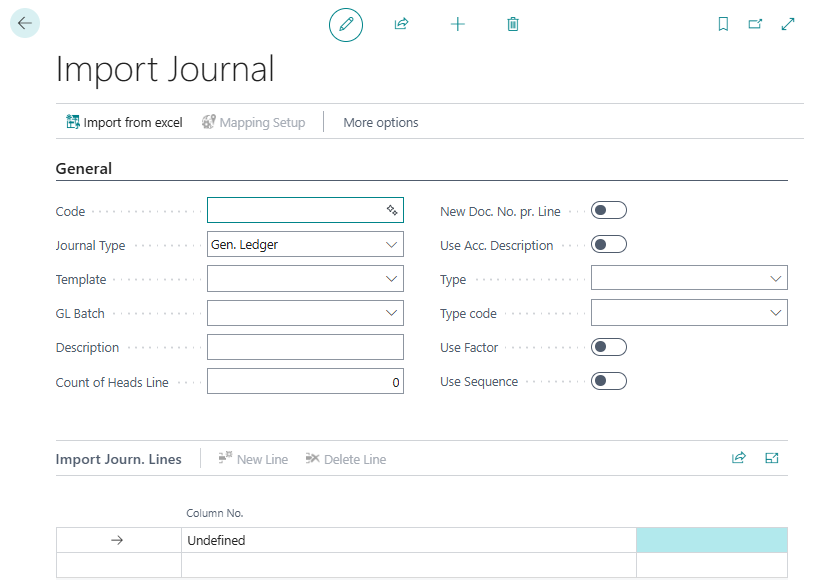
Basic Configuration
-
Code: Unique identifier for the import template
-
Journal Type: Determines import behavior and target journal
-
Template/Batch: Target journal template and batch
-
Description: User-friendly template description
Advanced Options
-
Count Heads Line: Number of header rows to skip in Excel
-
New Doc. No. per Line: Generate unique document numbers per line
-
Use Account Description: Use account name as transaction description
-
Business Account: Default business account for all imported lines
-
Type/Type Code: Default account type and number for lines without account specification
Processing Options
-
Use Factor: Apply multiplication factors during import
-
Use Sequence: Process columns in specific sequence order
Column Mapping Setup
Mapping Configuration
Access through Import Journals → Mapping Setup
General Ledger Column Mappings
-
Account Type: Maps to G/L Journal Account Type enum
-
Account No.: Maps to Account No. with formatting rules
-
Posting Date: Maps to Posting Date with date validation
-
Document Type: Maps to Document Type enum
-
Document No.: Maps to Document No. field
-
Description: Maps to Description with concatenation options
-
Department: Maps to Shortcut Dimension 1 Code
-
Project: Maps to Shortcut Dimension 2 Code with validation
-
Amount: Maps to Amount with numeric validation
-
Business Account: Maps to Sve Business Account with validation
Advanced Mapping Options
-
Fixed Type/No.: Override account type and number for specific columns
-
Description Line: Use fixed description instead of Excel content
-
New Line: Create new journal line for this column
-
Import Sequence: Control processing order of columns
-
Factor: Apply multiplication factor to numeric values
Complex Account Mapping
The system supports sophisticated account mapping based on multiple criteria:
Mapping Hierarchy (Priority Order)
-
Exact Match: Account + Dimension + Business Account
-
Account + Dimension: Without business account specification
-
Account + Business Account: Without dimension specification
-
Account Only: Basic account-level mapping
-
Dimension + Business Account: Without specific account
-
Dimension Only: Department-based mapping
-
Business Account Only: Service-type based mapping
Use Cases
-
Department-Specific Accounts: Map expenses to different accounts by department
-
Service-Type Routing: Route revenues to accounts based on business account type
-
Project Accounting: Direct project costs to specific account structures
-
Default Handling: Provide fallback mappings for unmapped combinations
Import Process Workflow
Step 1: Template Setup
-
Navigate to Import Journals → Setup
-
Create new import journal header
-
Configure journal type and target batch
-
Set processing options and defaults
Step 2: Column Mapping
-
Open Mapping Setup from import journal
-
Define Excel column to BC field mappings
-
Set up complex mapping rules if needed
-
Configure text line insertions for invoice batches
Step 3: File Upload and Import
-
Open import journal template
-
Use Import from Excel action
-
Select Excel file and worksheet
-
Review import parameters
-
Execute import process
Step 4: Validation and Review
-
System validates imported data
-
Creates missing customers/vendors if configured
-
Applies complex mapping rules
-
Generates journal lines in target batch
-
Opens target journal for review
Step 5: Posting
-
Review imported transactions
-
Make manual adjustments if needed
-
Post journal lines using standard BC posting
-
Generate audit trails and reports
Key Benefits
-
Efficiency: Dramatically reduces manual data entry time
-
Accuracy: Eliminates transcription errors through automated validation
-
Flexibility: Supports multiple journal types and data formats
-
Integration: Seamless connection with Business Central workflows
-
Automation: Auto-creation of missing master data records
-
Scalability: Handles large volume imports efficiently
-
Audit Trail: Complete tracking of import activities
-
User-Friendly: Intuitive setup and operation
The Import Journals module transforms how municipalities handle external financial data, providing robust, flexible, and automated import capabilities that integrate seamlessly with Business Central's native functionality.