
The Job Request System manages work requests from creation to completion, providing a complete workflow for municipal maintenance, projects, and service requests.
Accessing Job Requests
Navigate to Municipality Systems > Job Requests & Workbook > Job Requests > Job Request from the Municipal Manager Role Center.
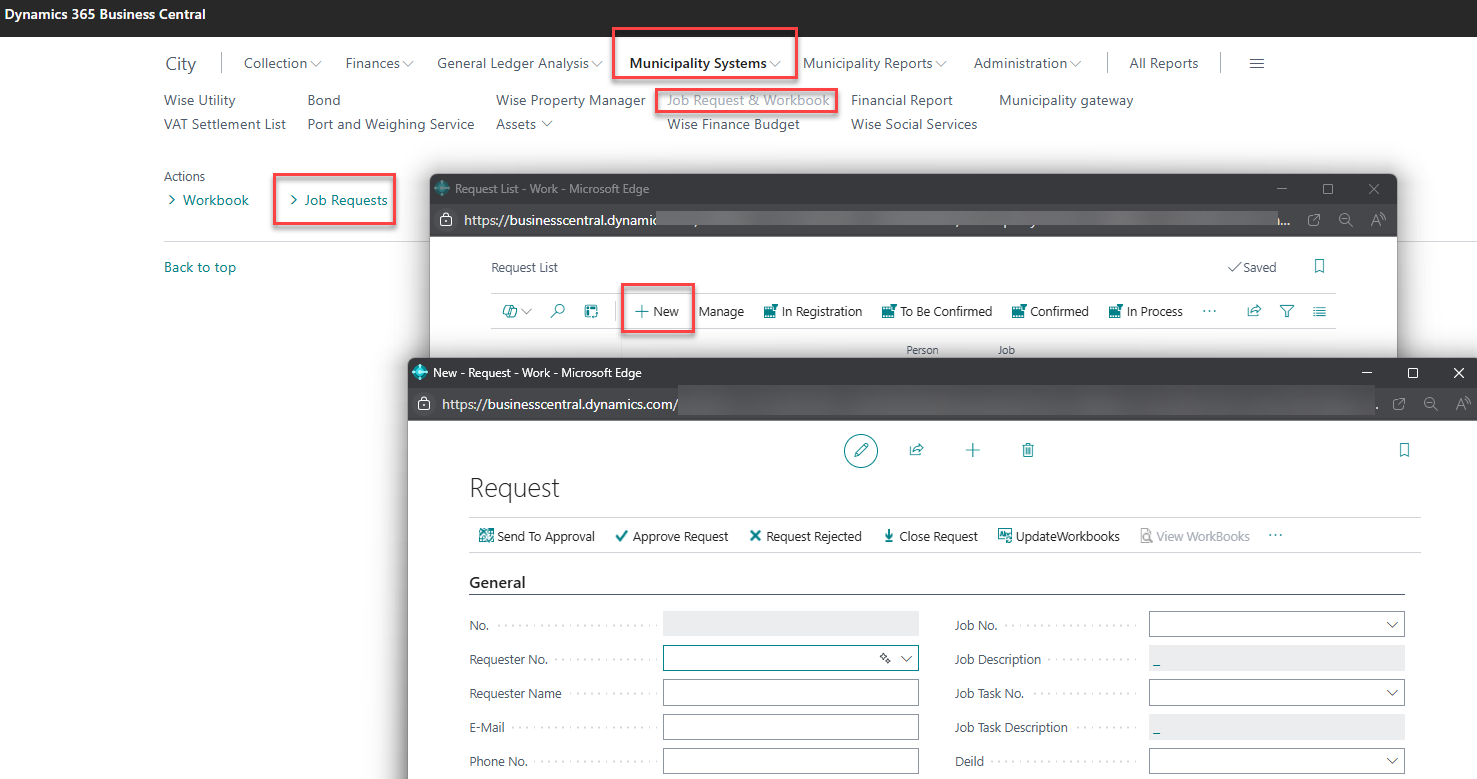
Creating a New Job Request
Manual Creation
-
Click New in the Job Requests list, see picture above
-
The system automatically assigns a Request Number
-
Enter Requester Information:
-
Requester No.: Employee or citizen ID
-
Requester Name: Full name of person making request
-
Phone No.: Contact telephone number
-
E-mail: Contact email address
-
Request Details
-
Enter Request Information:
-
Short Description: Brief summary of the request
-
Description: Detailed description of work needed
-
Priority: Low, Medium, or High
-
Urgency: Normal, Urgent, or Emergency
-
Promised Date: When work should be completed
-
Promised Time: Specific time if applicable
-
Assignment
-
Assign Responsibility:
-
Work Department: Department responsible for the work
-
Responsible: Person assigned to handle the request
-
Job No.: Link to Business Central Job if applicable
-
Job Task No.: Specific task within the job
-
Job Request Status Management
Status Types
-
New: Recently created, not yet assigned
-
In Progress: Work has begun
-
On Hold: Temporarily suspended
-
Finished: Work completed
Status Workflow
-
New Request: Created by requester or municipal staff
-
Assignment: Work department and responsible person assigned
-
In Progress: Work begins, time tracking starts
-
Completion: Work finished, request marked as complete
Priority and Urgency Management
Priority Levels
-
Low: Routine maintenance, non-critical issues
-
Medium: Standard work requests, moderate impact
-
High: Important work affecting municipal services
Urgency Levels
-
Normal: Standard processing time
-
Urgent: Expedited processing required
-
Emergency: Immediate attention needed
Integration with Jobs and Tasks
Linking to Business Central Jobs
-
In the Job Request, select the Job No. field
-
Choose from existing jobs or create a new one
-
Select appropriate Job Task No. for detailed tracking
-
Time and costs will automatically link to the job
Automatic Job Creation
The system can automatically create jobs for certain types of requests:
-
Set up automatic job creation rules in Municipality Setup
-
Define default job templates for common request types
-
Configure automatic assignment based on request category
Time Tracking and Workbook Integration
Recording Work Time
-
Navigate to Workbook from the Job Request
-
Enter time spent on the request
-
Specify work type (Regular, Overtime, Machine time)
-
Add any materials or expenses used
Resource Allocation
-
Personnel: Assign specific employees to the request
-
Equipment: Track machinery and vehicle usage
-
Materials: Record materials consumed
-
External Services: Track contractor involvement
Job Request History and Communication
Request History
View complete history of the request:
-
Status changes with timestamps
-
Assignment changes
-
Communication log
-
Work performed details
Communication Management
-
Internal Notes: Comments visible only to municipal staff
-
Customer Communication: Messages sent to requester
-
Status Notifications: Automatic updates on progress
-
Completion Notification: Automatic notice when work is finished
Reporting and Analytics
Standard Reports
-
Outstanding Requests: All pending job requests by department
-
Request by Priority: Analysis of request priorities and response times
-
Employee Workload: Requests assigned to each employee
-
Completion Analysis: Time to completion by request type
Key Performance Indicators
-
Average Response Time: From request to assignment
-
Average Completion Time: From assignment to completion
-
Request Volume: Number of requests by period
-
Department Performance: Completion rates by department
External Integration and API
Web Portal Integration
Citizens can submit requests through the web portal:
-
Online request submission form
-
Status tracking for submitted requests
-
Photo upload capability for visual requests
-
Location mapping for outdoor work
API Access
External systems can integrate via REST API:
-
Endpoint:
/api/wise/sve/v1.0/jobRequests -
Functions: Create, read, update request status
-
Authentication: Standard Business Central OAuth
Common Issues and Solutions
Error: "Cannot assign to this department"
Solution:
-
Verify the work department exists in Department setup
-
Ensure department is active and configured for job requests
-
Check user has permissions for the selected department
Error: "Requester not found"
Solution:
-
Create requester in Job Request Users if they don't exist
-
Use email address to automatically create user record
-
Verify requester information is complete
Issue: Time not tracking to job
Solution:
-
Confirm Job No. and Job Task No. are correctly assigned
-
Verify job task allows time tracking
-
Check that workbook entries are properly linked
Issue: Status not updating automatically
Solution:
-
Check workflow setup in Municipality Setup
-
Verify user permissions for status changes
-
Ensure request is properly assigned before status updates
Best Practices
Request Management
-
Assign requests promptly to avoid delays
-
Use consistent description formats for similar requests
-
Regular status updates keep requesters informed
-
Close requests promptly when work is complete
Prioritization Guidelines
-
Emergency: Safety issues, service outages
-
High: Service disruptions, critical infrastructure
-
Medium: Standard maintenance, non-critical repairs
-
Low: Cosmetic issues, routine improvements
Workload Distribution
-
Balance requests across available personnel
-
Consider skills and certifications when assigning
-
Monitor employee workload to prevent overallocation
-
Use temporary assignments for peak periods
The Job Request System streamlines municipal work management from initial request through completion, ensuring efficient resource allocation and excellent customer service.