
Goal
Generate customer invoices from property tax assessments, creating receivable entries that integrate with Business Central's customer ledger and enable payment processing through standard receivables management.
When to Use
Monthly Billing: Post current month's property tax assessments to customer accounts, typically done at month-end.
Quarterly Billing: Post water taxes and other quarterly assessments.
Annual Billing: Post annual property tax assessments, usually in January.
Catch-up Posting: Post previously unposted assessments after corrections or delays.
Prerequisites
Setup Requirements
-
Property Taxes Setup must be configured
-
Property Tax G/L Accounts must be defined
-
Customer numbers must be assigned to property owners
-
Number Series must be set up for customer invoices
-
Posting Date Range must allow the intended posting date
Information Needed
-
Target posting date (usually month-end)
-
Tax types to include in posting
-
Properties to post (or all properties)
-
Customer posting template to use
Step-by-Step Instructions
Step 1: Access the Property List
-
Open Business Central
-
Search for "Property List" or "Properties File"
-
Select the SveFast Property List page
-
The list shows all properties in the system
[Screenshot: Property List page with action buttons visible]
Step 2: Filter Properties (Optional)
If posting specific properties only:
-
Click the filter icon in the Property ID column header
-
Enter property ID range or specific IDs
-
Apply additional filters as needed:
-
Location ID: For geographic areas
-
Tax Group: For property classifications
-
Date Created: For recently added properties
-
[Screenshot: Property List with filters applied]
Step 3: Start the Posting Process
-
Click "Post Taxes to Customers" action button
-
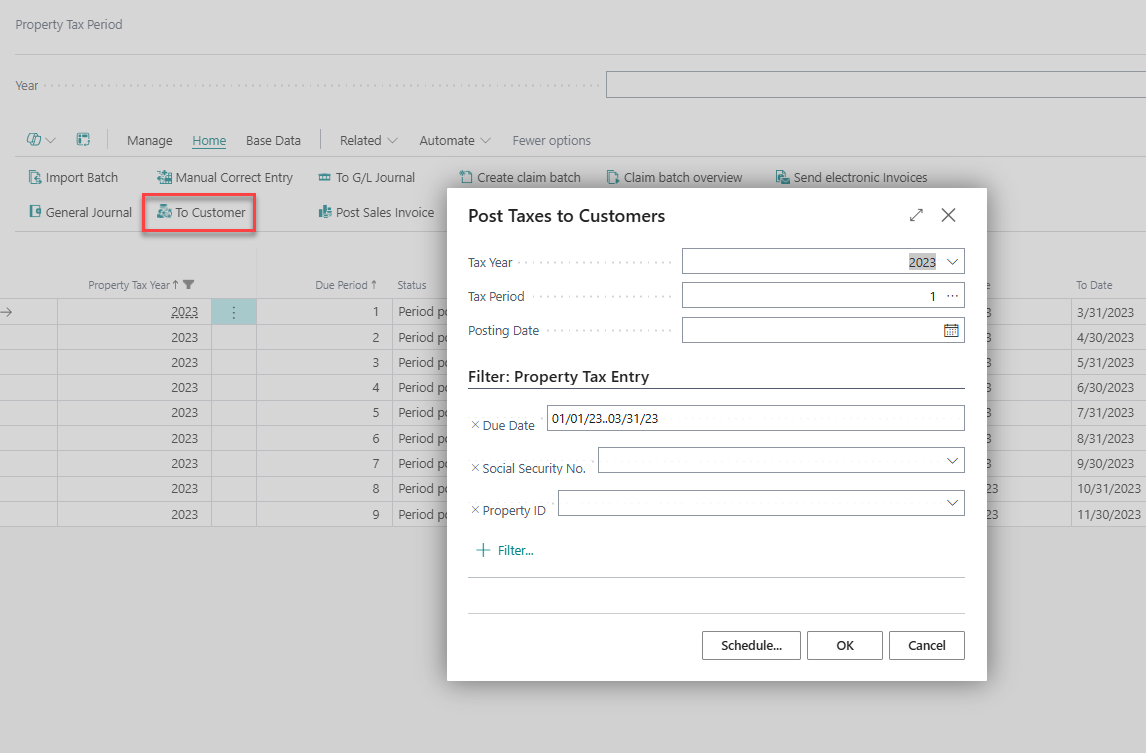
The SveFast Post Taxes to Customer report dialog opens
-
The Options tab shows posting parameters
[Screenshot: Post Taxes to Customer dialog box]
Step 4: Set Posting Options
General Options:
-
Posting Date: Enter month-end date (e.g., 31/12/2024)
-
Due Date: Usually same as posting date
-
Tax Year: Select year for assessments to post (default: current year)
Tax Types to Include:
-
Property Tax: Main property assessment
-
Water Tax: Utility charges
-
Garbage Disposal: Waste management fees
-
Lot Rent: Municipal land rental
-
Draining System: Sewer fees
-
Other Taxes: Miscellaneous assessments
Customer Posting Options:
-
Customer Posting Group: Select appropriate posting group
-
Customer Template: Choose template for new customers
-
Description Template: Set invoice description format
Step 5: Review and Validate Settings
Critical Checks:
-
Posting date is within allowed range
-
Tax year matches intended assessment period
-
Selected tax types are appropriate for billing cycle
-
Customer posting group is correct
Preview Option:
-
Click Preview to see posting results without committing
-
Review customer entries that will be created
-
Check amounts and account assignments
-
Return to adjust options if needed
Step 6: Execute the Posting
-
Click OK to run the posting process
-
Business Central processes each property:
-
Creates customer ledger entries
-
Posts to general ledger accounts
-
Updates tax entry posting status
-
Generates audit trail
-
[Screenshot: Posting progress indicator]
Step 7: Review Posting Results
Check Posting Log:
-
Review any error messages or warnings
-
Note how many properties were processed successfully
-
Identify any properties that failed to post
Verify Customer Entries:
-
Go to Customer Ledger Entries
-
Filter by posting date to see new property tax invoices
-
Verify amounts match assessment entries
-
Check that customer numbers are correct
[Screenshot: Customer Ledger Entries showing posted property taxes]
What Happens After
Immediate Results
-
Customer invoices are created in Business Central
-
Amounts appear in Customer Ledger Entries
-
Property tax entries are marked as "Posted"
-
General ledger accounts are updated with revenue
Follow-up Tasks
-
Generate Customer Statements: Print or email bills to property owners
-
Export to Payment System: Send invoice data to municipal payment processing
-
Monitor Collections: Track payments through Customer Ledger Entries
-
Handle Payment Applications: Apply incoming payments to specific properties
-
Age Analysis: Review outstanding amounts monthly
Financial Integration
-
Property tax revenue appears in G/L account balances
-
Dimensions are preserved for departmental reporting
-
Trial balance includes property tax receivables
-
Standard BC aging reports include property tax amounts
Related Reference Pages
-
Property List - Main property management interface
-
Property Taxes Setup - System configuration
-
Property Tax G/L Accounts - Account setup
-
Assessment Entries - Tax assessment records
-
Post Taxes to Customer Report - Report details
-
Tax Entries - Payment due dates and posting status
Screenshot Placeholders
[Screenshot: Property List with Post Taxes to Customers action highlighted]
[Screenshot: Post Taxes to Customer dialog showing all options]
[Screenshot: Posting results log showing successful and failed properties]
[Screenshot: Customer Ledger Entries filtered by posting date showing new property tax invoices]
[Screenshot: Property Tax factbox showing posting status updated]
Frequency: Monthly (property tax), Quarterly (water tax), As needed (corrections)
Duration: 15-30 minutes for 2,500 properties
Next Workflow: Generate Property Tax Bills