
The Municipal Financial Management System includes sophisticated user access control mechanisms that ensure users only access data relevant to their responsibilities and organizational role.
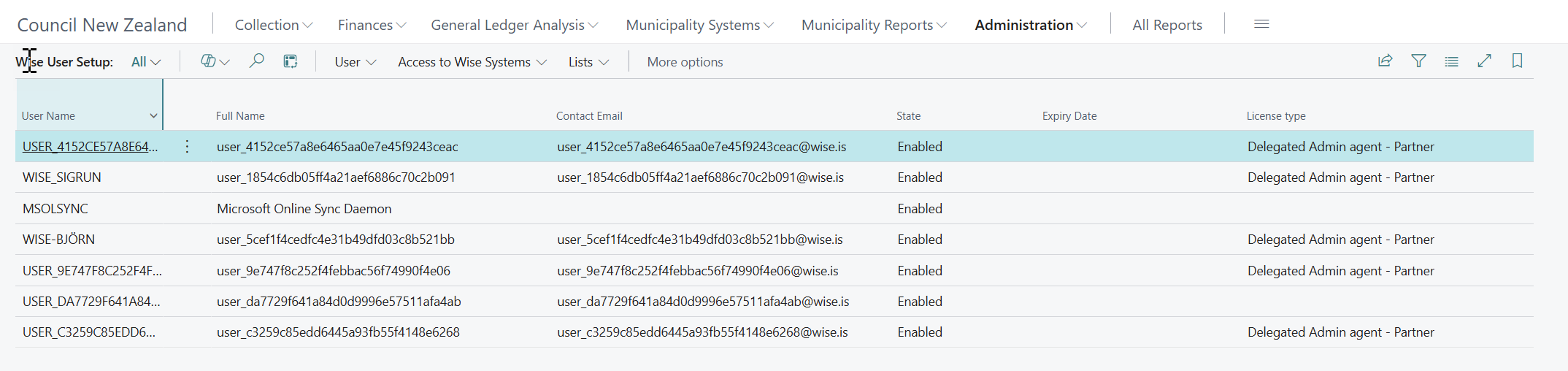
Overview of Access Control System
The system provides multi-layered security through:
-
Department-based access restrictions
-
Function-specific permissions (Financial vs. Payroll)
-
User profile management
-
Workbook-specific controls
-
Automatic filtering of pages and reports
User Access Control Components
Limited User Access Control
The primary access control mechanism that restricts user access to specific departments and functions.
Access Types
Financial Access (FIN)
-
Purpose: Controls access to financial data and transactions
-
Application: General ledger, budgets, financial reporting
-
Configuration: Department filters and workbook filters
Payroll Access (PRL)
-
Purpose: Controls access to payroll-related information
-
Application: Payroll transactions, employee data, payroll reports
-
Configuration: Separate department and workbook filters
Configuration Fields
Fin. DimFilter
-
Purpose: Restricts financial data access to specific departments
-
Format: Standard dimension filter format (e.g., "DEPT01|DEPT02|DEPT03")
-
Impact: Applied automatically to financial pages and reports
Payroll DimFilter
-
Purpose: Restricts payroll data access to specific departments
-
Format: Same as financial filter format
-
Usage: Applied to payroll-related functionality
Fin. Workbook Dimfilter
-
Purpose: Additional restrictions for financial workbook access
-
Application: Specialized financial analysis tools
-
Usage: More restrictive than general financial access
Payroll Workbook Dimfilter
-
Purpose: Additional restrictions for payroll workbook access
-
Application: Specialized payroll analysis tools
-
Usage: More restrictive than general payroll access
Wise User Profiles
User profiles provide template-based access control configuration.
Profile Configuration
Dimension 1 Filter
-
Purpose: Default department access for users assigned to this profile
-
Application: Used when no specific Limited User Access Control exists
-
Flexibility: Can be overridden by individual user settings
Profile Management
-
Assignment: Users are assigned profiles through User Setup
-
Inheritance: Users inherit profile permissions unless overridden
-
Templates: Profiles serve as templates for common access patterns
Setting Up User Access Control
Creating Limited User Access Control
-
Access Setup
-
Navigate to Limited User Access Control setup
-
Create entry for specific user ID
-
-
Configure Financial Access
-
Fin. DimFilter: Enter department codes user can access
-
Fin. Workbook Dimfilter: Set additional workbook restrictions if needed
-
-
Configure Payroll Access (if applicable)
-
Payroll DimFilter: Enter department codes for payroll access
-
Payroll Workbook Dimfilter: Set workbook-specific restrictions
-
-
Test Access
-
Log in as the user and verify appropriate filtering
-
Check that restricted departments are not visible
-
Setting Up User Profiles
-
Create Wise User Profile
-
Define profile name and description
-
Set default Dimension 1 Filter
-
-
Assign to Users
-
In User Setup, assign "Sve Wise User Profile"
-
Profile settings apply unless overridden by Limited User Access Control
-
-
Test Profile
-
Verify users inherit correct access permissions
-
Confirm profile changes affect assigned users
-
How Access Control Works
Automatic Filtering
Page-Level Filtering
The system automatically applies access control filters to pages through event subscribers:
Customer Ledger Entries
-
Event: OnOpenPageEvent
-
Filter Applied: Global Dimension 1 Code restricted to user's accessible departments
-
Result: Users only see customer entries for their departments
General Filtering Logic
-
Priority: Limited User Access Control takes precedence over User Profiles
-
Fallback: User Profile settings used when no specific control exists
-
Filter Group: Filters applied using FilterGroup(8) for system-level enforcement
Filter Resolution Process
-
Check Limited User Access Control
-
Look for user-specific access control entry
-
Apply function-specific filter (FIN or PRL)
-
-
Check User Profile
-
If no specific control exists, use User Profile settings
-
Apply Dimension 1 Filter from profile
-
-
Apply Filters
-
Set appropriate filters on pages and reports
-
Use filter group 8 for system enforcement
-
Ensure filters persist across page operations
-
Filter Merging and Validation
Merge Process
When both main filter and limit filter exist:
-
Validation: Ensure limit filter is subset of main filter
-
Error Handling: Prevent access if filters conflict
-
Documentation: Clear error messages for unauthorized access
Department Validation
-
Active Departments: Only include departments with no "Closed From Date"
-
Type Filtering: Include only Department type (not Field Class)
-
Existence Check: Verify all departments in filter exist
Access Control in Practice
Financial Data Access
Automatic Application
-
Budget Overview: Filtered by user's accessible departments
-
General Ledger Entries: Restricted to authorized departments
-
Financial Reports: Automatically apply department filters
User Experience
-
Seamless: Users see only relevant data without manual filtering
-
Consistent: Same restrictions apply across all pages and reports
-
Transparent: System applies filters without user intervention
Workbook Access
Additional restrictions for specialized tools:
-
Financial Workbooks: Use Fin. Workbook Dimfilter
-
Payroll Workbooks: Use Payroll Workbook Dimfilter
-
Enhanced Security: More restrictive than general access
Permission Validation
Real-Time Validation
The system includes functions to validate user permissions:
CheckDim1FilterPermission
-
Purpose: Validates user has permission for specific dimension filter
-
Process: Compares requested filter against user's allowed departments
-
Error Handling: Clear error messages for unauthorized access attempts
Error Messages
-
No Access Defined: "You have not defined access"
-
Department Restriction: "You do not have access to department [CODE]"
-
Filter Violation: "The filter is not within your permissions, department [CODE]"
Access Validation Process
-
User Lookup: Find user in User Setup
-
Profile Check: Verify Wise User Profile assignment
-
Permission Comparison: Compare requested access against allowed departments
-
Error Reporting: Provide specific error messages for violations
Best Practices
Setup Practices
Role-Based Access
-
Design access based on job roles and responsibilities
-
Use User Profiles for common access patterns
-
Apply Limited User Access Control for exceptions
Principle of Least Privilege
-
Grant minimum access necessary for job function
-
Regularly review and update access permissions
-
Remove access promptly when roles change
Documentation
-
Document access control decisions and rationale
-
Maintain records of who has access to what departments
-
Create procedures for access requests and changes
Maintenance Practices
Regular Reviews
-
Periodically review user access permissions
-
Verify access aligns with current organizational structure
-
Update permissions when departments change
Change Management
-
Implement approval process for access changes
-
Test access changes before implementing in production
-
Maintain audit trail of access modifications
Monitoring
-
Monitor for access violations or unusual patterns
-
Investigate failed access attempts
-
Regular testing of access controls
Security Practices
Segregation of Duties
-
Ensure appropriate separation of financial responsibilities
-
Prevent conflicts of interest through access restrictions
-
Regular review of user access combinations
Audit Compliance
-
Maintain documentation for audit requirements
-
Provide evidence of access control effectiveness
-
Regular testing and validation of controls
Integration with System Functions
Inventory Posting Integration
Special handling for inventory transactions:
-
Automatic Department Assignment: Inventory accounts get department from setup
-
Validation: Ensures inventory transactions have proper dimensions
-
Control: Maintains departmental cost tracking for inventory
VAT Transaction Integration
VAT transactions receive automatic dimension assignment:
-
Department Assignment: Based on VAT setup configuration
-
Consistency: Ensures VAT entries follow access control rules
-
Compliance: Supports departmental VAT reporting
Troubleshooting Access Issues
Common Issues
Issue: User cannot access expected data
-
Solution: Check Limited User Access Control settings
-
Verify User Setup and Profile assignment
-
Confirm department codes are correct and active
Issue: Too much data visible to user
-
Solution: Review and tighten access control filters
-
Check for conflicting or overly broad filters
-
Verify system is applying filters correctly
Issue: Access control not working on specific page
-
Solution: Check if page has event subscriber implementation
-
Verify filter group settings
-
Contact system administrator for custom page requirements
Issue: Error messages when accessing data
-
Solution: Check permission validation against user's allowed departments
-
Verify department codes in error message exist and are accessible
-
Review access control setup for the user
Diagnostic Steps
-
Identify User: Confirm user ID and current access setup
-
Check Configuration: Review Limited User Access Control and User Profile
-
Test Filters: Verify filters are being applied correctly
-
Validate Departments: Ensure all referenced departments exist and are active
-
Document Solution: Record resolution for future reference
The User Access Control system provides comprehensive security while maintaining usability, ensuring users have appropriate access to perform their responsibilities while protecting sensitive organizational data.