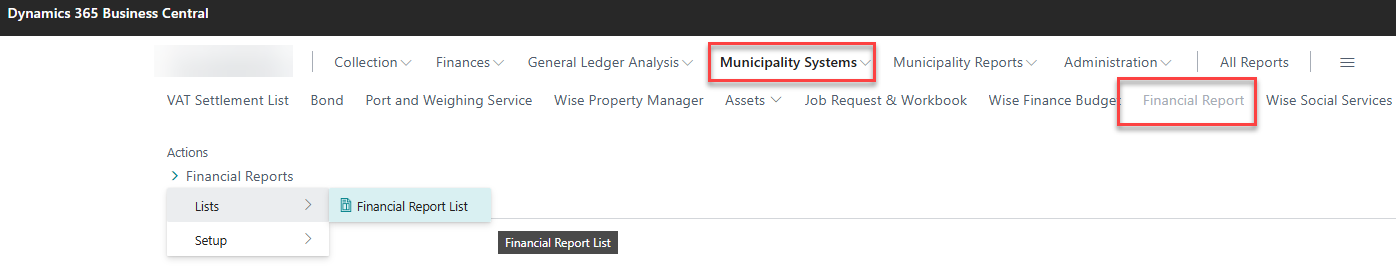
Begin by navigating to the Financial Report (under Municipality Systems), and then click on Financial Reports – Lists – Financial Report List.
This opens an overview of all settlements that have been created. To create a new settlement, click New.
Settlements intended for auditors can be reused multiple times by simply updating the date.
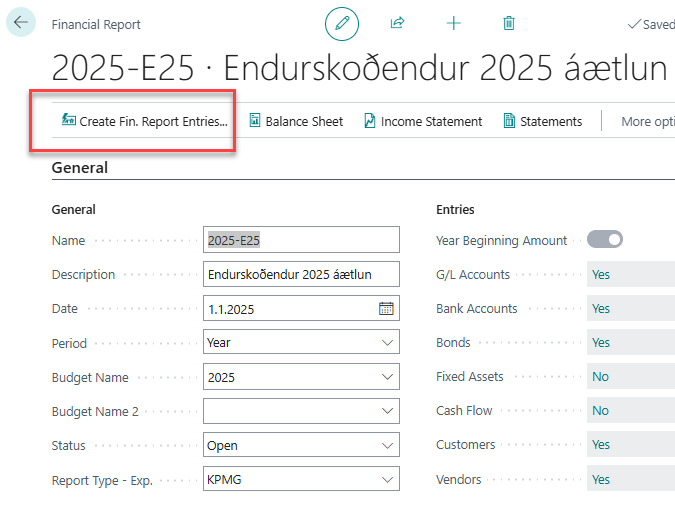
Fill in the fields as shown below, then click Create Fin. Report Entries.
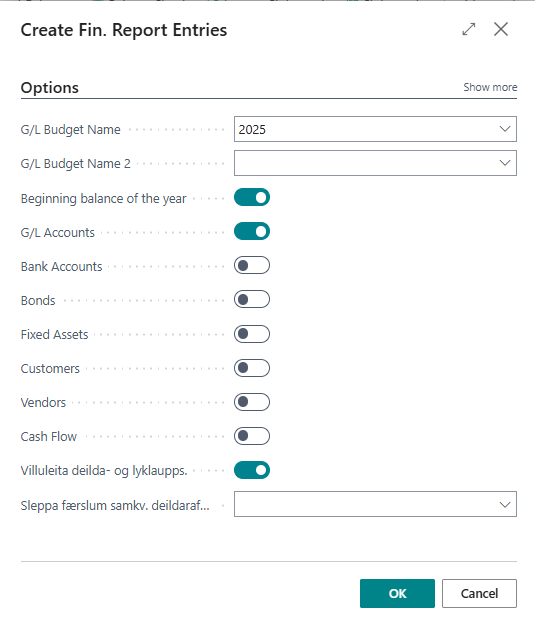
The following window will appear, and it should be filled out as shown below for auditor use:
-
Beginning Balance of the year – If there have been no changes to the previous year’s settlement, this checkbox can be left unchecked. This speeds up the process. For example, opening balances can be updated during the first run, and if corrections are needed later, they can be applied here.
-
G/L Accounts – For auditors, it is sufficient to check the Financial Accounts box here.
-
Department and Account Validation – This step is optional, but it ensures that no departments or accounts are omitted.
Example of an error related to item 3:
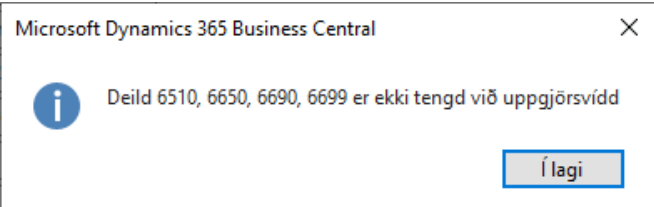
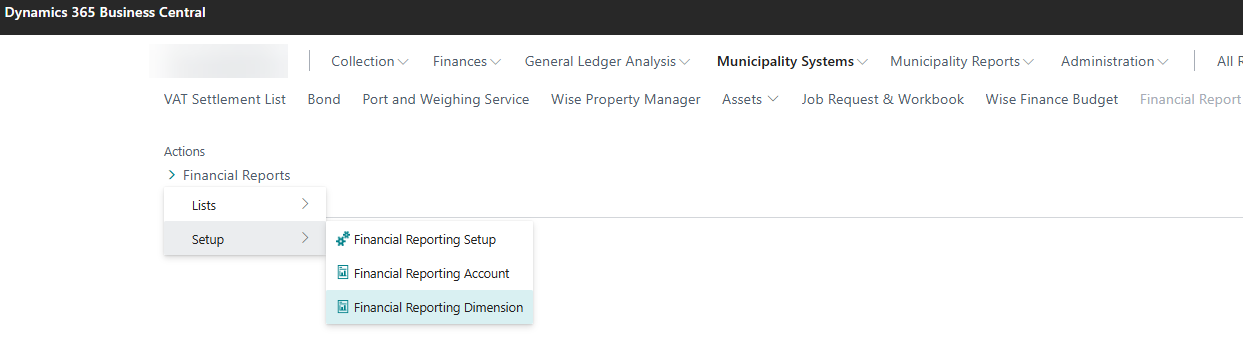
User needs to navigate to the Financial Reporting Dimension setup
(Municipality Systems > Financial Report > Financial Reports > Setup > Financial Reporting Dimension).
Locate the relevant entry and add the appropriate departments. In this case, the departments are added under Other “Category B Institutions”/“Aðrar B-hluta stofnanir”.
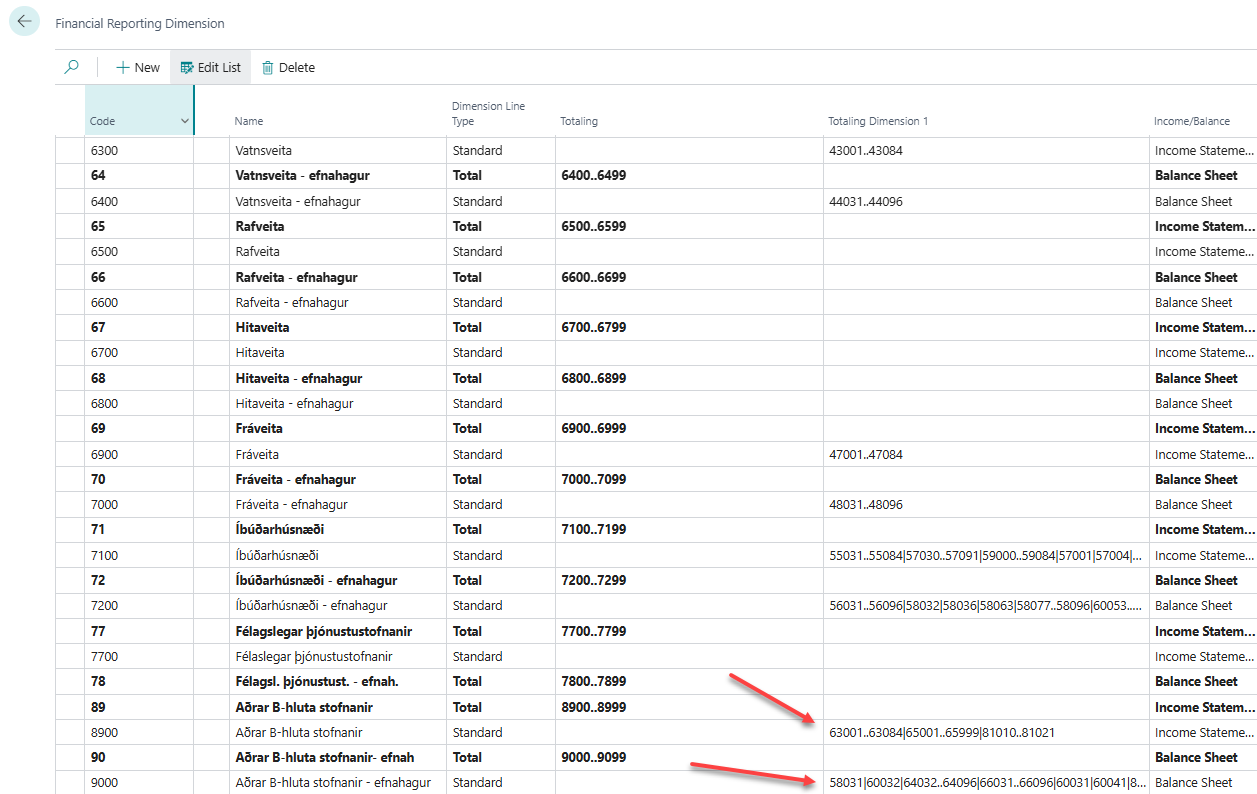
Then return to Create Fin. Report Entries, and the process should complete. The duration of the run depends on the size of the municipality.
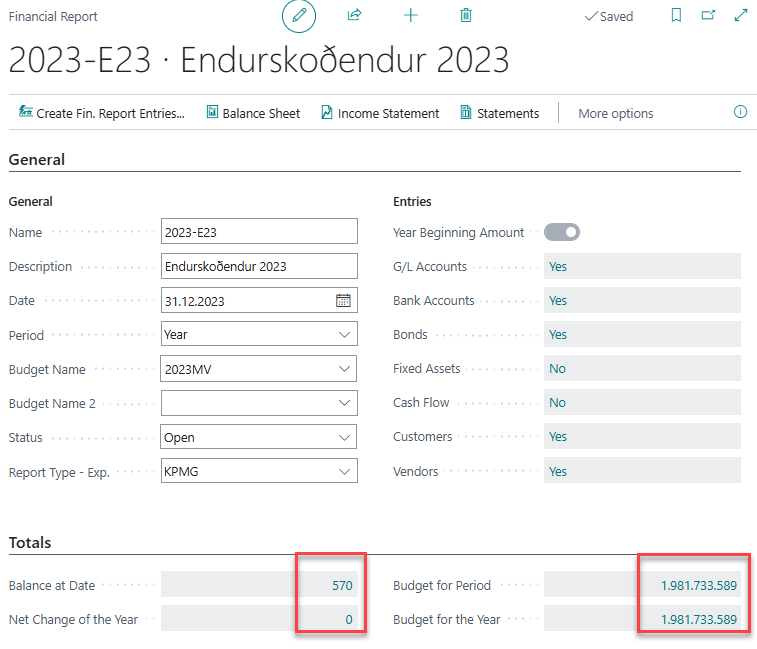
Once the run is finished, the status of the settlement should be visible. The fields Balance at Date and Net Change of the Year should be zero or close to zero.
The budget figures represent the combined totals from both the operating and financial budgets, so they do not necessarily match the projected operating result.
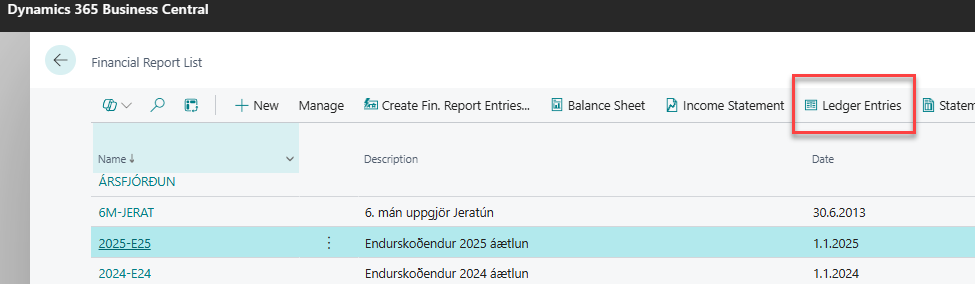
The next step is to open the entries, which is done by clicking the corresponding button in the menu while in the Ledger Entries view.
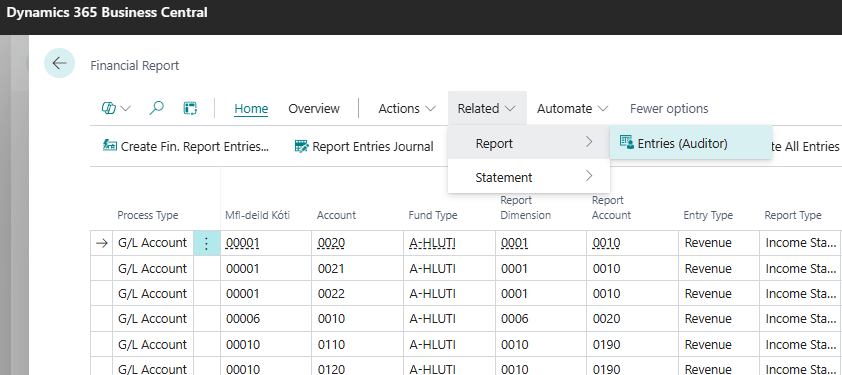
Then go to Related > Report > Entries (Auditor).
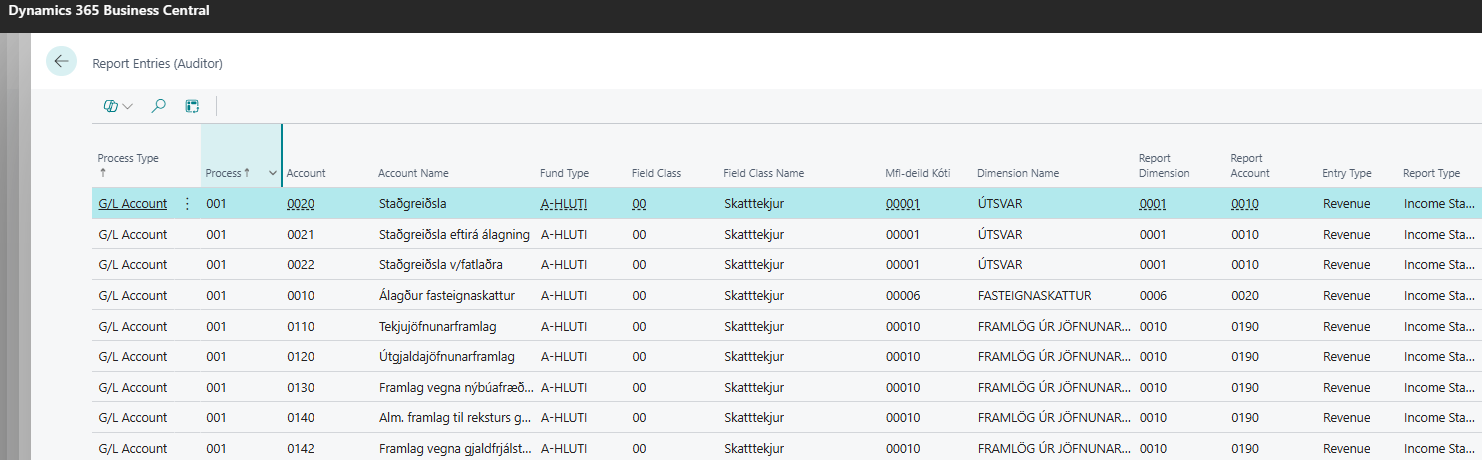
The data is then exported to Excel and sent to the auditors. Exporting to Excel is straightforward and can be done with a simple action.

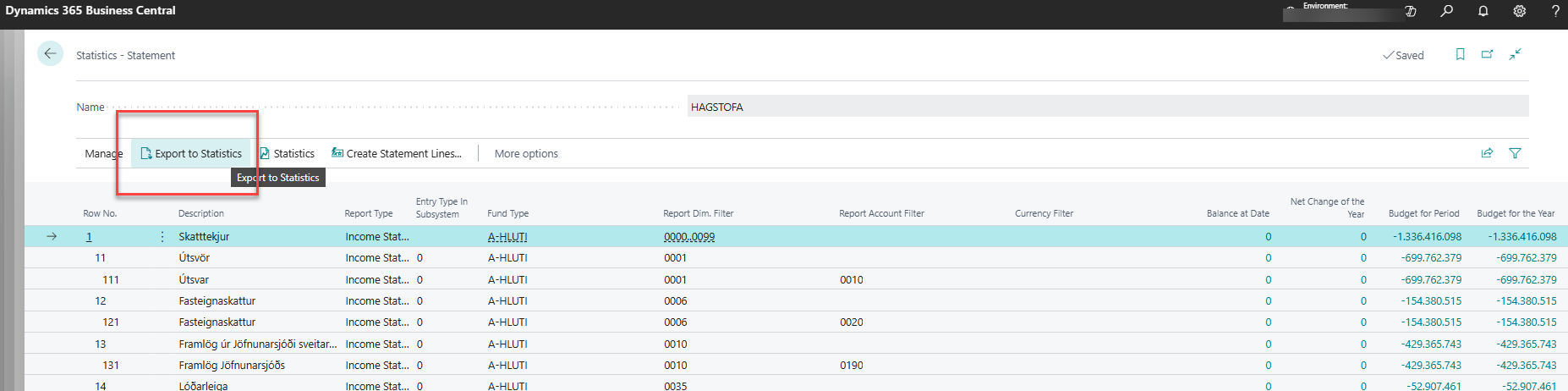
When submitting data to Statistics Iceland, go to Overview – Statistics. The system will then generate the required report.
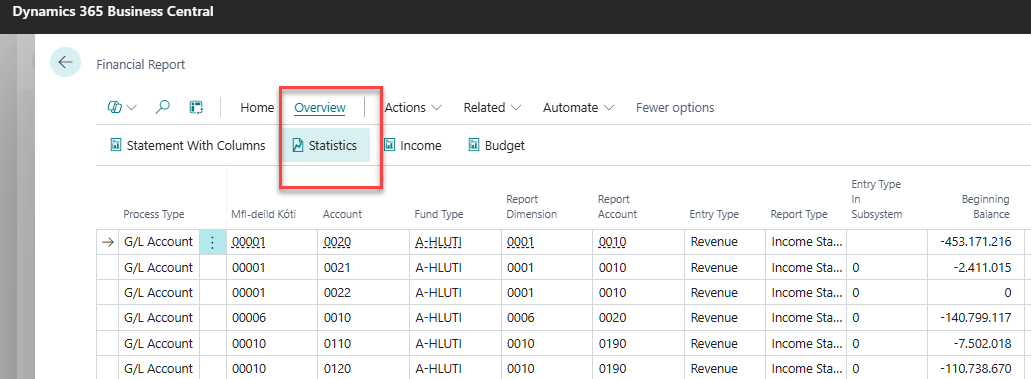
which can be sent directly to Statistics Iceland.